

I’ll guide you through making a Contact Poster on your iPhone. First, open Messages (or Contacts) and tap Edit, then Name & Photo.
Next, tap Add or Customize, choose Photos or Memoji, select and crop a circular image, then pick a color filter and tap
Next. After that, tap your name to choose a font, adjust weight and color with the sliders, and preview styles by swiping.
When satisfied, tap Update, enable Name & Photo Sharing, choose Share Automatically or Ask Each Time, and finally tap Done to save and share your Contact Poster, then preview it across your apps.
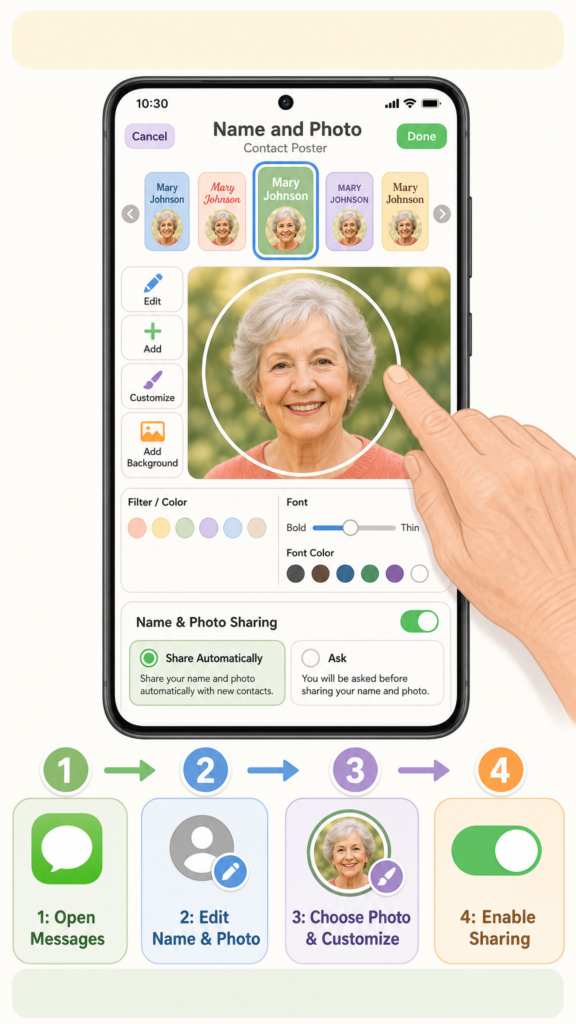
- Open Messages (or Contacts) → Edit → Name & Photo.
- Tap Add or Customize, choose Photos or Memoji, then crop and apply a color filter.
- Select a font, adjust weight and color with sliders, and preview poster styles.
- Tap Update, enable Name & Photo Sharing, and choose Share Automatically or Ask Each Time.
- Tap Done to save and preview the Contact Poster across your apps.