
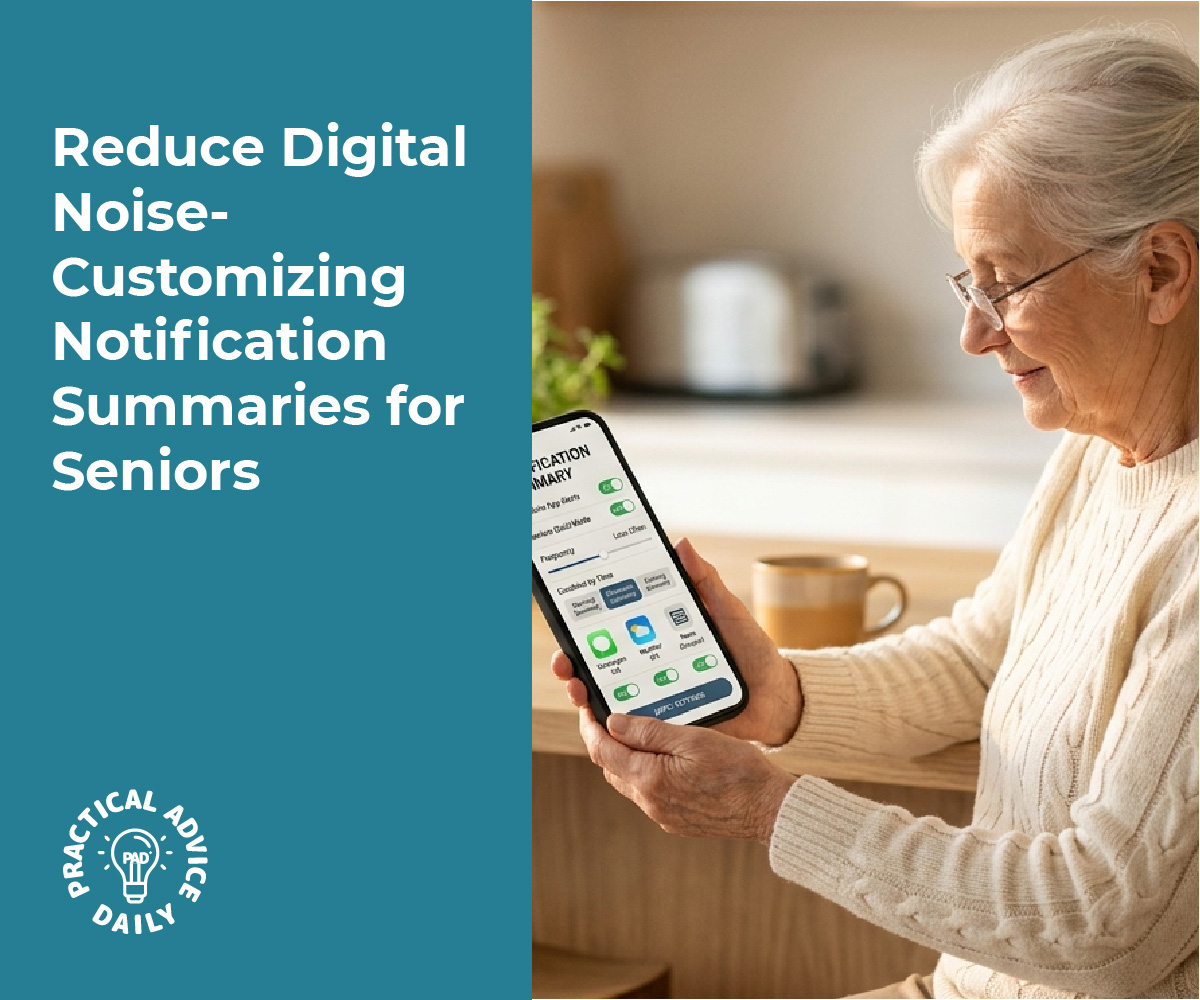
Your iPhone can group non-urgent notifications into scheduled summaries that appear at specific times you choose, while allowing calls and messages from important contacts to come through immediately. This feature helps reduce constant interruptions from apps like social media, shopping, and food delivery services without missing what truly matters.
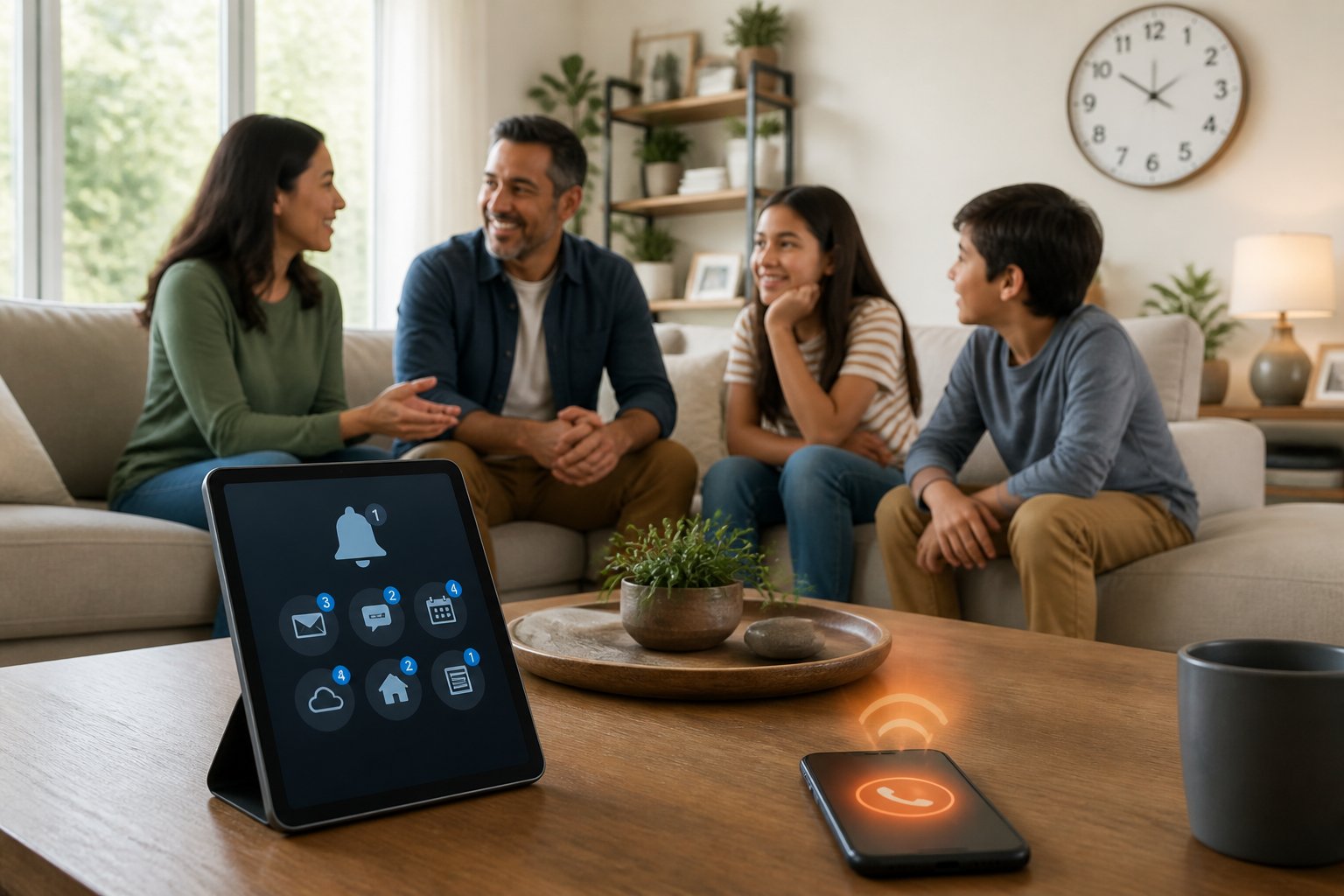
The Scheduled Summary feature collects alerts from selected apps and delivers them as a single digest at times you set, while calls, messages from key contacts, and time-sensitive notifications bypass the summary and arrive instantly. This approach provides a practical middle ground between silencing everything and being bombarded by alerts all day.
Setting up this system takes just a few minutes in your iPhone settings. You select which apps should have their notifications delayed, choose when you want to receive summaries, and ensure your emergency contacts and critical apps maintain immediate access to reach you.
Table of Contents
Key Takeaways
- Scheduled summaries group non-urgent notifications into batches delivered at times you choose while letting important calls and messages through immediately
- You control which apps get delayed and which stay urgent by selecting them individually in your notification settings
- Time-sensitive alerts and communications from priority contacts bypass summaries automatically to ensure you never miss emergencies
Understanding Notification Summaries and Their Benefits

Notification summaries consolidate non-urgent alerts into scheduled deliveries, allowing users to maintain focus while ensuring important communications still reach them immediately. This system addresses notification overload by grouping informational notifications and delivering them at predetermined times.
What Are Notification Summaries?
Notification summaries are iPhone features that bundle non-urgent app alerts into organized collections delivered at specific times throughout the day. Instead of receiving individual pings for every email, social media update, or news alert, the system groups these digital interruptions into a single condensed view.
The feature works by analyzing incoming notifications and determining which ones can wait. Apps like shopping platforms, news services, and social media typically fall into this category. The iPhone then holds these alerts and presents them together during scheduled delivery times that the user selects.
Apple Intelligence enhances this process by analyzing notification content and extracting key information. When multiple alerts arrive from the same app, the system creates a condensed summary highlighting essential details rather than displaying each notification separately.
How Notification Summaries Help Reduce Distractions
Scheduled summaries address notification fatigue by limiting the frequency of digital interruptions. Users receive their bundled notifications at predetermined intervals—such as morning and evening—rather than experiencing constant disruptions throughout the day.
This approach helps individuals maintain concentration during work, meetings, or personal time. The system keeps informational notifications accessible while preventing the fragmented attention that comes from continuous alerts. Group chats and app updates no longer trigger immediate interruptions.
The feature creates clear boundaries between urgent and non-urgent communications. Time-sensitive alerts from designated contacts or apps still break through immediately, while less critical updates wait for the next scheduled delivery.
Key Features of Scheduled Summaries
Customizable delivery times allow users to choose when they receive their notification bundles. Most people select 2-4 delivery windows daily, such as 8 AM, 12 PM, 6 PM, and 9 PM.
App-specific controls let users decide which applications participate in the summary system. Users can add or remove apps from their scheduled summary through Settings → Notifications → Scheduled Summary → Apps in Summary.
Priority detection ensures the system recognizes which notifications deserve immediate attention. The iPhone evaluates factors like sender identity and content urgency to determine if an alert should bypass the summary.
Unified presentation displays both individual urgent alerts and grouped summaries within the notification center. This creates a consistent experience where users can scan condensed information for key details without scrolling through lengthy lists of separate notifications.
Step-by-Step Guide: Setting Up and Customizing Notification Summaries
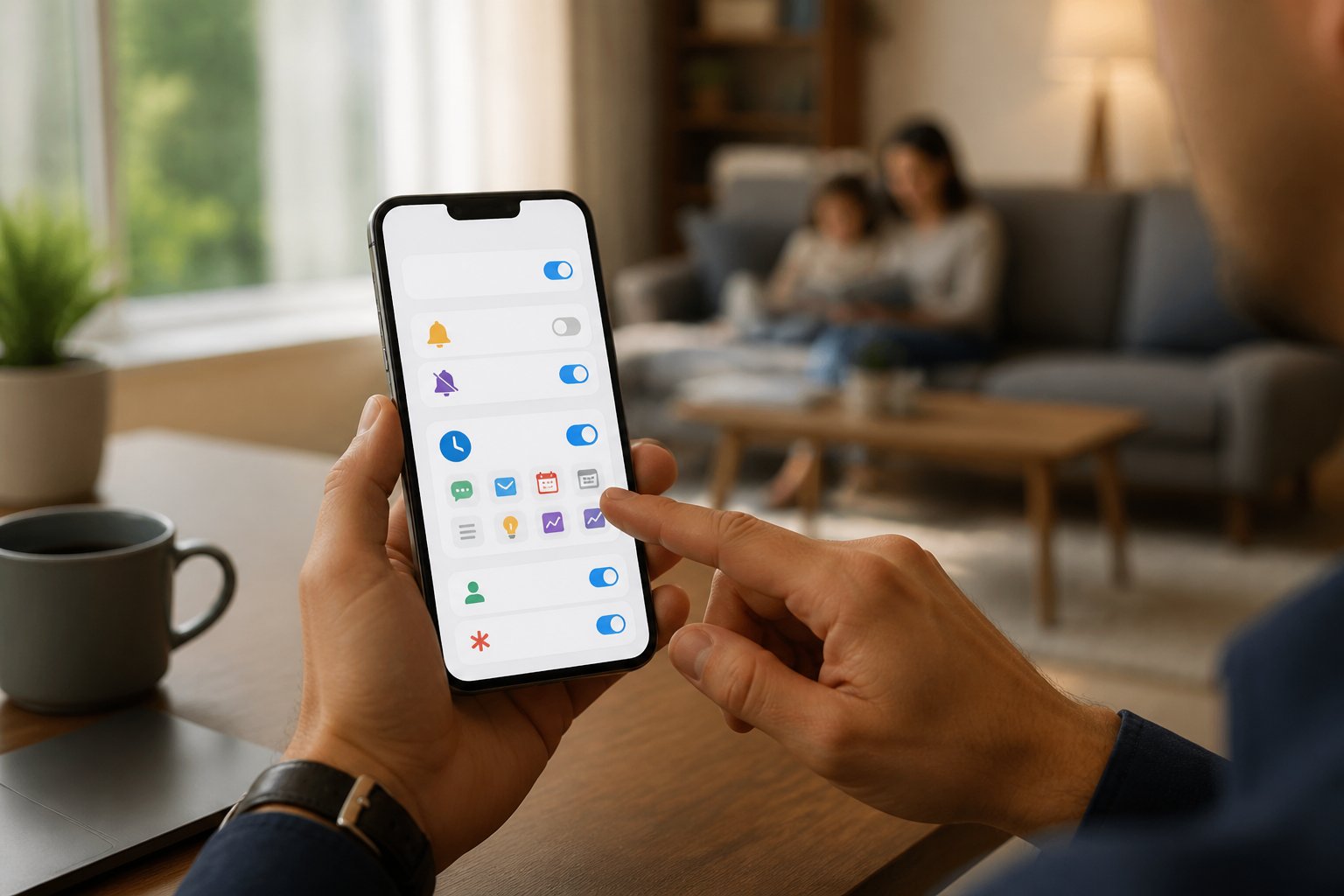
Setting up notification summaries requires enabling the feature in iOS 15 or later, selecting which apps to include, and choosing specific delivery times. Users can adjust these settings at any time or disable summaries when immediate access to all notifications becomes necessary.
How to Enable Scheduled Summary in iOS 15
Users should open the Settings app and navigate to Notifications to find the Scheduled Summary option. After tapping on Scheduled Summary, they can toggle the switch to turn on notification summary functionality.
The system uses device intelligence to analyze notification patterns and suggest appropriate apps for summarization. This feature works alongside notification management tools to reduce interruptions throughout the day.
Once enabled, users must select at least one delivery time for their summary. The interface displays a preview showing how summarized notifications will appear on the lock screen, grouped together with key details visible at a glance.
Selecting Apps for Your Notification Summary
Below the Scheduled Summary toggle, a list of installed apps appears with checkboxes next to each one. Users should review this list carefully and select only apps that deliver non-urgent content like social media updates, shopping alerts, or news notifications.
Critical apps such as phone calls, messaging apps used by family members, and emergency alert services should remain unchecked. These apps will continue to deliver immediate notifications that break through the summary schedule.
The apps in summary section can be modified at any time by returning to notification settings and adjusting selections. Some apps may be automatically suggested based on notification frequency and user interaction patterns.
Customizing Frequency and Delivery Times
Users can schedule up to 12 summary deliveries per day by tapping “Add Summary” in the Scheduled Summary settings. Each summary can be set to a specific time that aligns with natural breaks in their daily routine.
Common delivery times include morning (8:00 AM), lunch (12:00 PM), and evening (6:00 PM), though users can customize these to match their preferences. The system displays how many notifications would have been included in each summary based on recent activity patterns.
To remove a scheduled time, users should swipe left on the time slot and tap Delete. Adjusting delivery frequency helps balance staying informed with maintaining focus during important tasks.
Turning Off Notification Summary When Not Needed
To temporarily disable notification summaries, users should navigate to Settings > Notifications > Scheduled Summary and toggle off the feature. All selected apps will immediately return to delivering individual notifications as they arrive.
Users can also turn off notification summary for specific apps without disabling the entire feature by unchecking those apps in the selection list. This flexibility allows for quick adjustments based on changing priorities or situations where immediate updates become necessary.
The notification settings retain all previous configurations, so re-enabling the feature restores previously selected apps and delivery times without requiring setup from scratch.
Letting Critical Alerts Break Through: Prioritizing Urgent Notifications
Critical notifications require special handling to ensure important contacts can reach you while filtering out less urgent interruptions. The key is establishing clear priority levels that distinguish between genuine emergencies and routine alerts that can wait.
Understanding Critical and Emergency Notifications
Critical notifications bypass standard Do Not Disturb and focus modes to deliver time-sensitive information that requires immediate attention. These alerts include security system warnings, smoke detector alarms, severe weather alerts, and designated emergency contacts.
Most platforms distinguish critical notifications from regular alerts through specific notification channels. On iOS, critical notifications override the mute switch and volume settings entirely. Android systems use dedicated notification channels that ignore Do Not Disturb restrictions.
Users should verify which apps have critical notification permissions. Not every app needs this level of access. Security systems, health monitoring apps, and home automation sensors typically warrant critical status. Social media and shopping apps do not.
Managing Family and Emergency Calls
Designating specific contacts as emergency or favorite contacts ensures important calls break through focus modes. Both iOS and Android allow users to whitelist contacts whose calls and texts will always notify, regardless of active filtering settings.
Key steps for contact prioritization:
- Add family members and emergency contacts to a favorites list
- Enable “Allow Calls From” settings in Do Not Distur
- Configure repeated calls (two calls within 3 minutes) to break through
- Verify emergency bypass settings for specific contacts in notification settings
Focus Assist on Windows and focus modes on mobile platforms support contact-based exceptions. Users can create multiple profiles that allow different contacts through depending on context, such as work hours versus personal time.
Balancing Smart Filtering and Focus Modes
Intelligent filtering systems analyze notification content and sender importance to surface priority alerts automatically. Apple’s Reduce Interruptions Focus evaluates message urgency based on content patterns, while Android’s Priority mode learns from user behavior over time.
Effective notification filtering requires regular adjustment. Users should review which alerts broke through versus which were batched in daily summaries. If critical work emails get delayed or non-urgent family texts interrupt focus time, the filtering rules need refinement.
Recommended filtering configuration:
| Notification Type | Action | Timing |
|---|---|---|
| Emergency contacts | Allow always | Immediate |
| Family members | Allow during waking hours | Immediate |
| Work colleagues | Focus mode dependent | Immediate or batched |
| App alerts | Batch in summary | Once daily |
Notification etiquette extends to how others contact you. Sharing your focus schedule with family and colleagues helps them understand when immediate responses are possible versus when messages enter the daily summary queue.
Best Practices for Reducing Notification Overload
Managing notification settings requires strategic adjustments across devices and platforms. Individuals who implement smart filtering systems and regularly audit their alert preferences can significantly reduce digital interruptions while maintaining access to critical communications.
Evaluating and Adjusting Notification Preferences
Users should conduct a comprehensive audit of notification settings across all applications and devices. This process involves opening each app’s settings and disabling alerts for non-essential communications such as promotional messages, social media likes, and app update reminders.
Most platforms offer granular control over notification types. Users can turn off notifications for specific categories while keeping others active. For example, a messaging app might allow someone to silence group chat alerts while preserving notifications for direct messages.
Priority levels help distinguish between urgent and routine alerts. Many systems allow users to designate certain contacts or apps as high-priority, ensuring their messages break through quiet modes. Others can be set to deliver silently or consolidate into scheduled summaries.
Regular reviews of these settings prevent notification creep. Apps frequently reset preferences during updates or add new notification types without explicit consent. A monthly check ensures settings remain aligned with actual needs.
Using Notification Managers Across Devices
Notification managers provide centralized control over alerts from multiple sources. These tools consolidate incoming notifications into a single interface where users can batch process, filter, or schedule delivery times.
Built-in operating system features often include focus modes and do-not-disturb settings. iOS and Android both offer scheduling capabilities that automatically silence non-priority notifications during specified hours. Users can configure exceptions for emergency contacts or critical apps.
Third-party notification management apps provide additional functionality:
- Batch processing of similar alerts into grouped summaries
- Custom filtering rules based on keywords, senders, or urgency
- Cross-device synchronization to dismiss alerts across all platforms simultaneously
- Scheduled digest delivery at predetermined times
Smart routing ensures alerts reach the appropriate device. Someone working at a desk might route notifications to their computer while sending urgent calls to their phone. Location-based rules can trigger different notification behaviors based on whether someone is at home, work, or elsewhere.
Combating Alert Fatigue and Decision Fatigue
Alert fatigue develops when individuals receive so many notifications that they become desensitized to them. This phenomenon causes people to ignore or delay responses to genuinely important alerts because they cannot distinguish them from routine noise.
Reducing total notification volume addresses the root cause of alert fatigue. Studies show that the average person receives 63+ notifications daily, creating constant cognitive interruptions. Cutting this number by 50-75% through selective filtering restores attention to critical communications.
Decision fatigue compounds the problem as each notification demands mental energy to evaluate its importance. Implementing automated filtering rules eliminates repetitive decisions about which alerts to address immediately versus later.
Smart notifications use contextual awareness to determine appropriate delivery times. These systems analyze factors like device activity, calendar appointments, and historical response patterns to defer non-urgent alerts until natural breaks in focus. The technology prevents interruptions during meetings or concentrated work while ensuring time-sensitive information reaches users promptly.
Setting clear boundaries between notification types prevents cognitive overload. Separating emergency alerts from routine updates allows the brain to process each category differently rather than treating every ping as equally demanding.
Final thoughts
Notification Summaries give seniors a simple, powerful way to cut daily interruptions while keeping urgent contacts connected. By grouping non‑urgent app alerts into scheduled digests, you reduce alert fatigue and decision overload without missing important messages. A quick setup in Settings → Notifications lets you choose which apps are batched, when summaries arrive, and which people or apps always break through. Regularly review and tweak selections—especially emergency and family contacts—to keep the balance right as needs change. With a few minutes of configuration, phones become calmer tools that protect attention and preserve access to what matters most.