
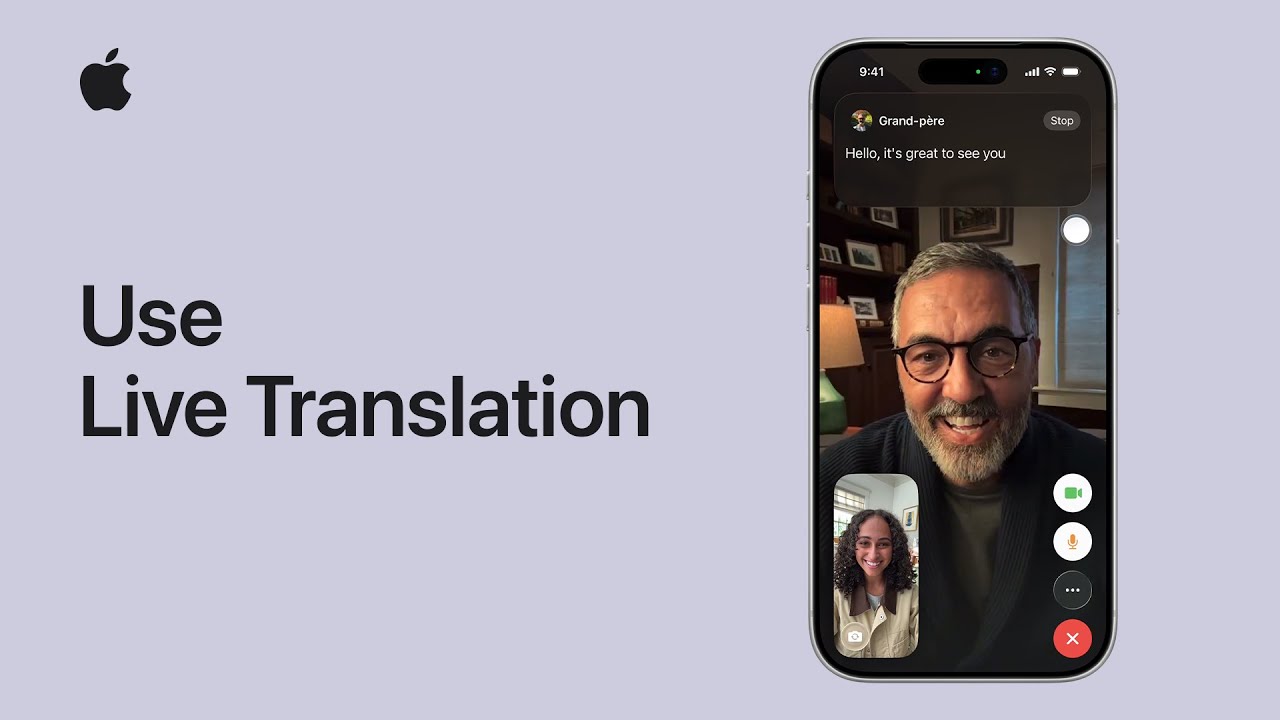
I want to translate messages, calls, FaceTime, or in-person conversations; here’s how I do it.
First I ensure my iPhone runs iOS 26 and Apple Intelligence is on. In Messages I tap the contact, enable Automatically Translate, pick the source language, then type and send — translations appear as I write and my contact gets them.
During a call I tap More, choose Live Translation, pick the language, and Start Translation for live spoken translation.
In FaceTime tap More and start Live Translation for captions.
For in-person I update my AirPods, open Translate, set up Live, pick a language, start.
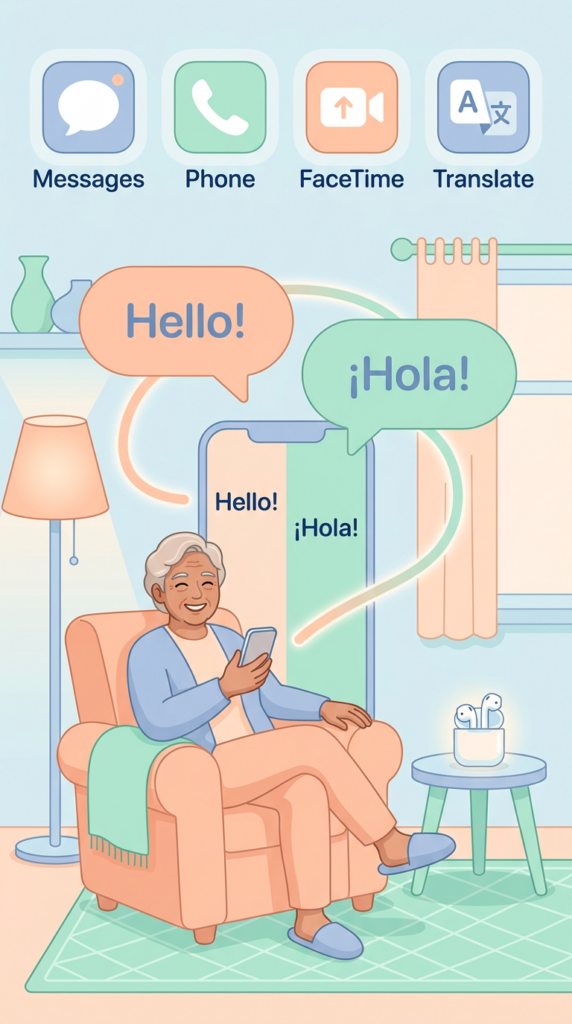
- Ensure iPhone runs iOS 26 and Apple Intelligence is enabled.
- In Messages: enable Automatically Translate in the contact, choose language, type and send (translations appear as you type).
- During phone calls: tap More → Live Translation → choose language → Start Translation for live spoken translation and onscreen transcription.
- In FaceTime: tap More → Start Live Translation for live captions.
- For in-person conversations: update compatible AirPods, open Translate → Live → Set Up Live Translation → choose language → Start.