
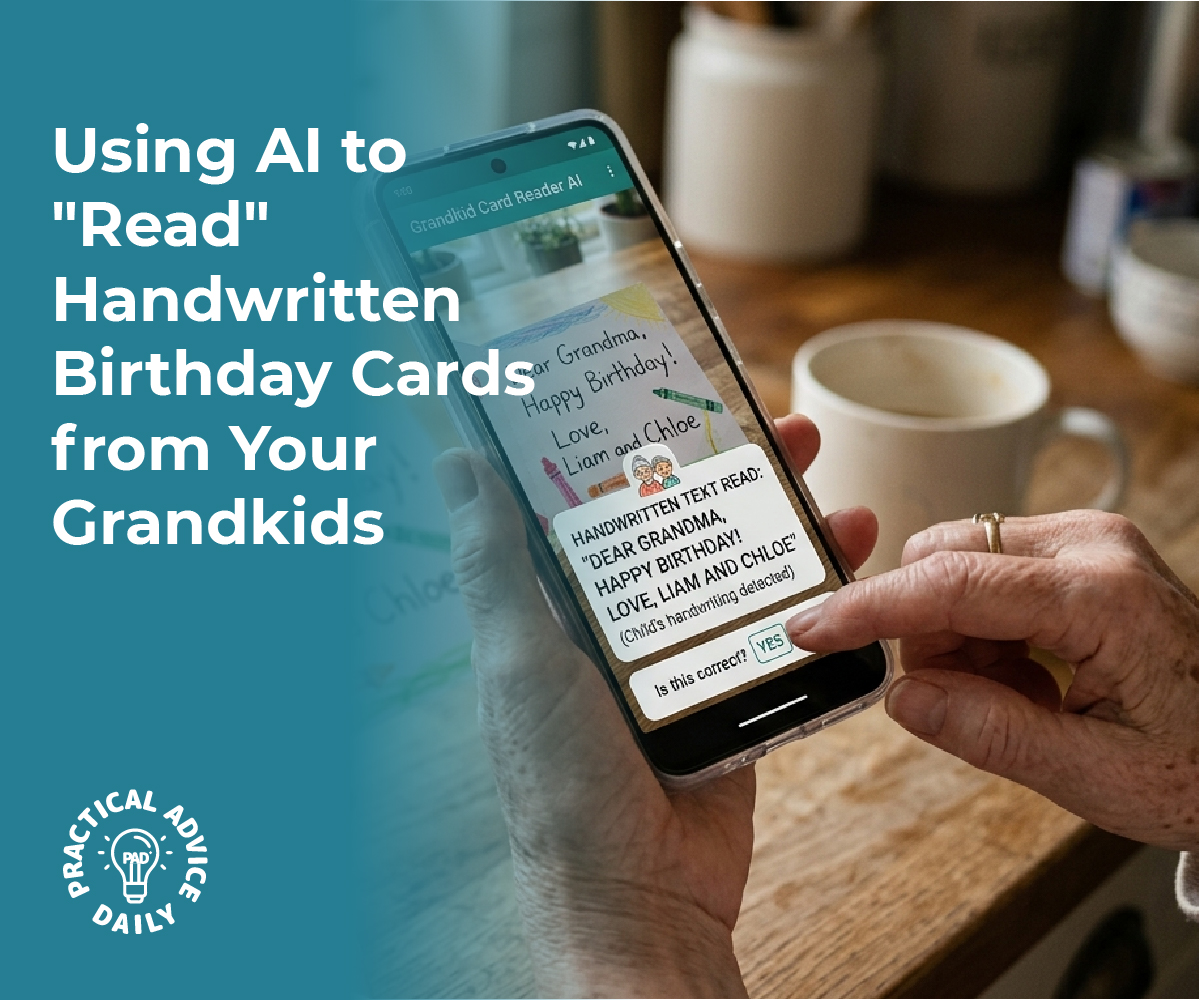
Handwritten cards and letters carry a personal touch that digital messages can’t replicate, but deciphering messy or cursive handwriting has always been a challenge. The iPhone now uses advanced AI technology, powered by features like Live Text and Apple Intelligence, to automatically recognize and convert handwritten text into editable, searchable digital format—even when the writing is difficult to read. This capability transforms how users interact with handwritten content, making treasured notes and important documents instantly accessible.
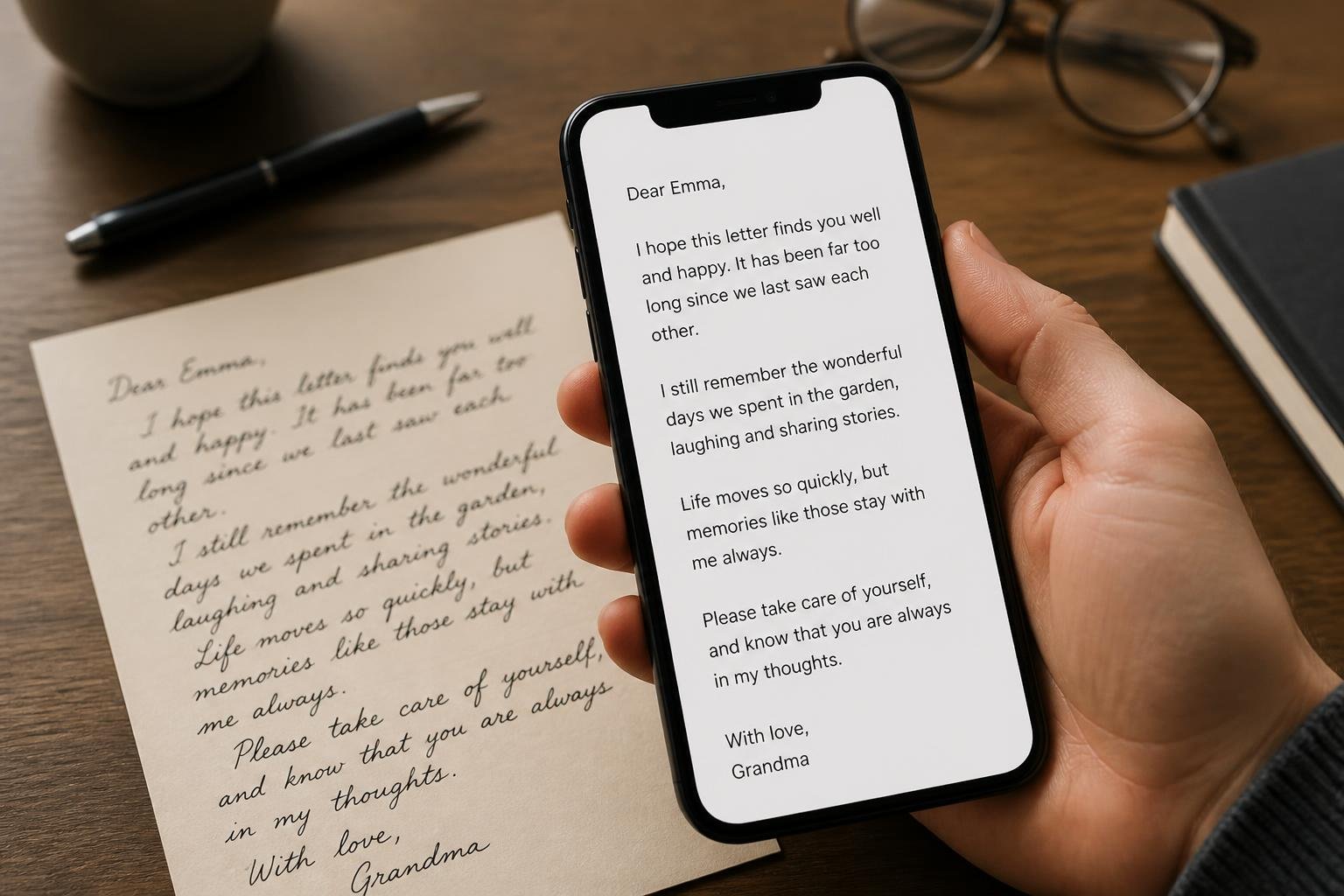
The technology behind this feature relies on sophisticated neural networks and machine learning algorithms that can identify individual characters in cursive writing, understand context through language models, and adapt to various handwriting styles. Unlike traditional optical character recognition systems that struggled with anything beyond printed text, modern AI handwriting recognition excels at reading connected letters, inconsistent spacing, and irregular penmanship. The process happens directly on the device, ensuring both speed and privacy.
This advancement is available on recent iPhone models equipped with the necessary processing power, particularly those running Apple’s latest chips. Users can digitize handwritten content by simply pointing their camera at text or using the built-in features in iPadOS with an Apple Pencil. The system continues to improve through ongoing software updates, making it an increasingly valuable tool for preserving memories and staying organized.
Table of Contents
Key Takeaways
- iPhones use AI-powered technology to convert messy and cursive handwriting into editable digital text with high accuracy
- The feature works through on-device processing that combines neural networks with language models to understand context and writing patterns
- Users need compatible iPhone models with recent Apple chips to access handwriting recognition capabilities through Live Text and Apple Intelligence features
How AI-Powered Handwriting Recognition Works on iPhone
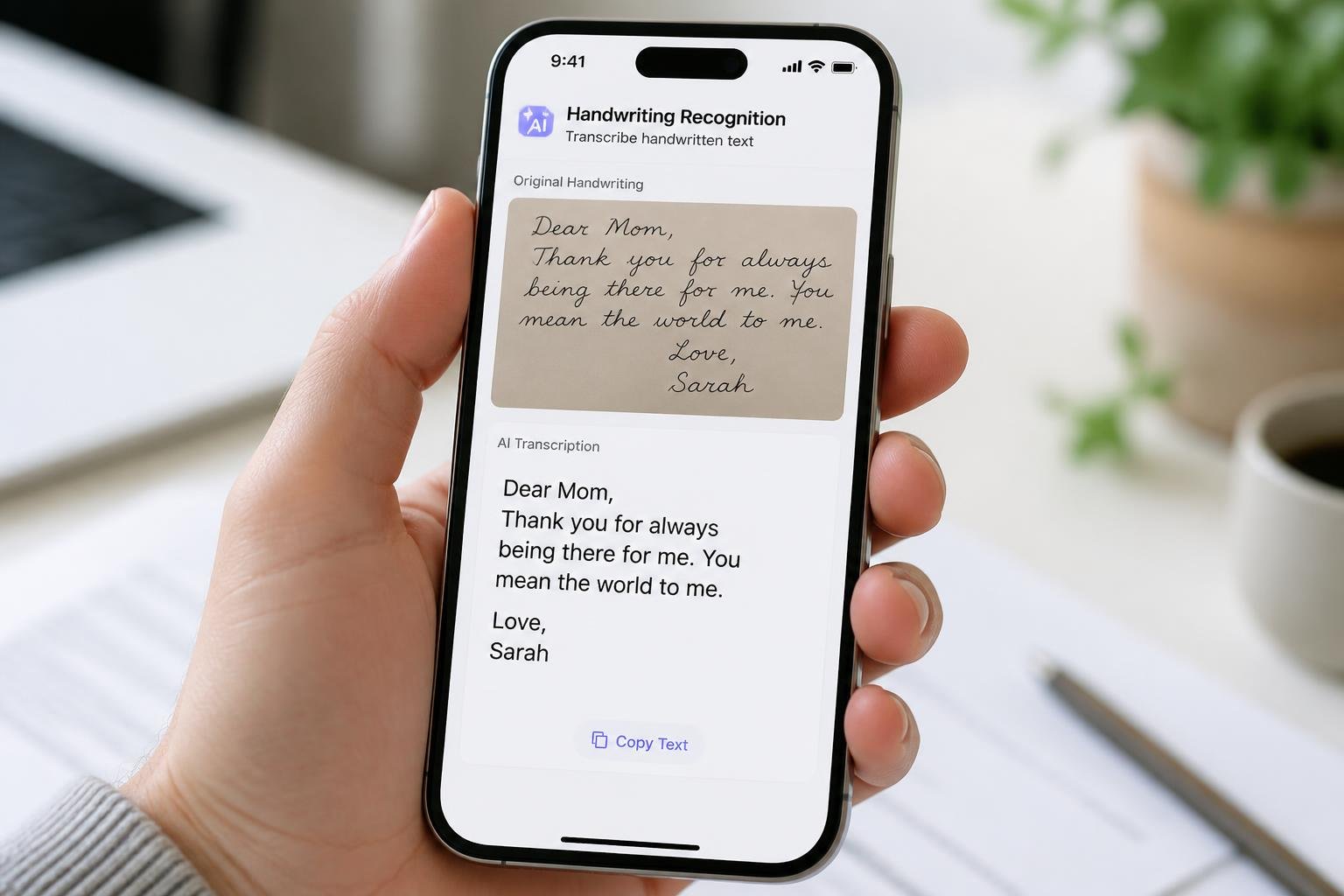
The iPhone uses advanced optical character recognition and machine learning algorithms to transform handwritten text into digital format. This technology analyzes patterns in handwriting styles, adapts to individual quirks, and processes images through neural networks trained on millions of handwriting samples.
Understanding Optical Character Recognition (OCR) Technology
OCR technology forms the foundation of handwriting recognition on iPhone devices. The system captures an image of handwritten text and breaks it down into individual characters, analyzing each letter’s shape, curves, and positioning.
Traditional OCR focuses on printed text, but modern implementations on iOS incorporate pattern matching algorithms that identify variations in handwritten letters. The iPhone’s OCR engine examines factors like stroke direction, letter spacing, and character formation to determine which letters appear in the image.
The process happens in layers. First, the camera or photo library provides the input image. Second, the OCR engine preprocesses the image to enhance contrast and reduce noise. Third, the system segments the text into lines and individual characters.
Neural networks trained on diverse handwriting samples enable the OCR features to recognize different writing styles. This training allows the technology to distinguish between similar-looking characters and interpret context when letters appear ambiguous.
From Messy to Clear: Overcoming Cursive and Imperfect Handwriting
Cursive handwriting presents unique challenges because letters connect together without clear boundaries. The iPhone’s AI addresses this by analyzing the flow of connected strokes and predicting where one letter ends and another begins.
Machine learning models examine thousands of potential character combinations to determine the most likely interpretation. The system considers linguistic patterns and common word formations to improve accuracy when individual letters appear unclear.
The technology handles messy handwriting through several techniques:
- Contextual analysis that uses surrounding words to interpret unclear letters
- Probability scoring that weighs multiple possible interpretations
- Edge detection that identifies letter boundaries despite irregular spacing
- Adaptive learning that improves with exposure to different handwriting styles
Imperfect handwriting often includes crossed-out words, varying pen pressure, and inconsistent letter sizes. The AI filters out irrelevant marks while focusing on the primary text elements, maintaining accuracy even when the input appears disorganized.
Live Text and Built-In iOS Capabilities
Live Text represents Apple’s native implementation of handwriting recognition within iOS. Users can point their camera at handwritten notes, cards, or letters, and the system automatically detects and highlights selectable text without requiring third-party applications.
The feature integrates across the operating system. Users can select recognized text directly from photos in the Photos app, copy it to other applications, or perform actions like making phone calls or visiting websites when the handwriting contains contact information or URLs.
iOS 18.1 enhanced these capabilities with improved accuracy for cursive recognition and support for additional languages. The system processes handwriting on-device, which protects privacy and enables instant recognition without internet connectivity.
The Scribble engine powers text input with Apple Pencil on compatible devices, converting handwritten input into typed text in real-time. This same underlying technology extends to photograph analysis, allowing the iPhone to process static images of handwriting with comparable accuracy.
Comparing AI and Third-Party Apps for Digitizing Handwritten Notes
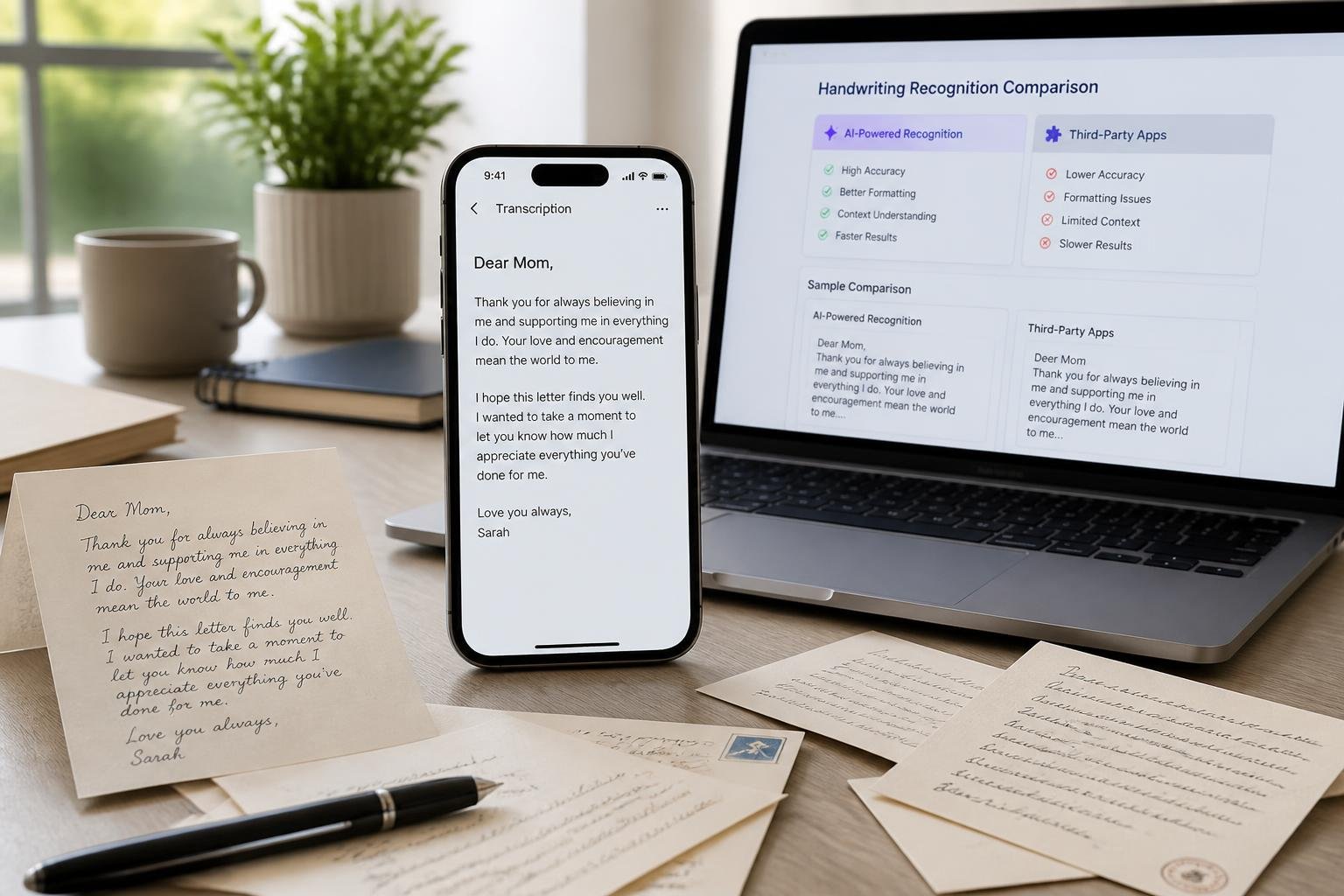
iPhone users have access to built-in Apple Intelligence for handwriting recognition, but dedicated OCR scanner apps offer different capabilities and features. The choice between Apple’s native solution and third-party tools depends on accuracy needs, privacy requirements, and the volume of documents being processed.
Apple Intelligence Versus Popular OCR Scanner Apps
Apple Intelligence handles handwriting recognition directly on the device through the Notes app and Live Text features. Users can point their camera at handwritten text and immediately copy or translate it without uploading images to external servers. The system works well with clear handwriting and integrates seamlessly with iOS workflows.
Specialized OCR scanner apps like Microsoft Lens and CamScanner provide batch processing capabilities that Apple’s native tools lack. These apps can process multiple pages at once and export results to various formats including Word and PDF. Third-party OCR features often include advanced options like automatic edge detection, perspective correction, and cloud storage integration.
The accuracy difference between Apple Intelligence and dedicated OCR apps varies by handwriting style. Apple’s solution performs well with printed-style handwriting but may struggle with elaborate cursive. Specialized apps typically achieve 90% or higher accuracy across different writing styles due to their focused training on handwriting recognition tasks.
Adobe Scan and Alternatives: Advantages and Drawbacks
Adobe Scan offers automatic document detection and integrates with Adobe’s ecosystem of productivity tools. The app provides reliable OCR scanning with good accuracy on both typed and handwritten text. It automatically saves scans to Adobe Document Cloud, making files accessible across devices.
The main drawback involves Adobe’s subscription model and cloud dependency. Users need an Adobe account, and many advanced features require a paid subscription. Alternative apps like Microsoft Lens provide similar OCR capabilities without mandatory subscriptions or cloud storage requirements.
Google Drive’s built-in OCR feature offers a free alternative for basic handwriting recognition. Users upload images to Drive and convert them to Google Docs format. The system handles simple handwriting adequately but lacks the advanced processing options found in dedicated OCR scanner apps.
Ensuring Security and Privacy of Scanned Content
Apple Intelligence processes handwriting recognition entirely on-device, keeping scanned content private and secure. The text never leaves the iPhone, which makes it suitable for sensitive documents like personal letters or financial records. No data gets uploaded to external servers for processing or model training.
Third-party OCR apps vary significantly in their privacy practices. Adobe Scan uploads documents to cloud servers for processing, which creates potential privacy concerns for confidential materials. Microsoft Lens offers both cloud and on-device processing options depending on user preferences.
Most dedicated OCR scanner apps state in their terms of service that uploaded content may be used for service improvement. This practice poses risks for healthcare records, legal documents, or any materials containing personal information. Users handling sensitive handwritten content should verify an app’s data retention and usage policies before uploading documents.
Maximizing Results: Tips, Device Requirements, and New Features
Getting the most accurate handwriting recognition requires proper lighting and camera positioning, along with compatible Apple Intelligence-enabled devices running iOS 18.1 or later. The feature works best on iPhone 15 Pro and newer models, with enhanced capabilities when integrated with Siri and Apple’s broader AI ecosystem.
Best Practices for Accurate Handwriting Scans
Proper lighting makes a significant difference in handwriting recognition accuracy. Users should position cards or letters in well-lit areas, avoiding harsh shadows or glare that can obscure text details.
Holding the iPhone steady and centering the handwriting within the camera frame improves recognition quality. The camera should be positioned parallel to the document surface, approximately 6-8 inches away for optimal focus.
For cursive writing or faded text, slightly increasing the distance and ensuring even lighting across the entire document helps the AI process letter formations more effectively. Users can tap the screen to adjust focus on specific sections of particularly challenging handwriting.
Clean camera lenses produce clearer captures. A quick wipe with a soft cloth before scanning removes smudges that might interfere with character recognition.
Using the Latest iPhone Models and iOS Versions
Apple Intelligence handwriting features require specific hardware and software configurations. The iPhone 15 Pro, iPhone 15 Pro Max, and all iPhone 16 and iPhone 17 models support these capabilities through their A17 Pro, A18, or A19 chipsets.
iOS 18.1 introduced the foundation for Apple Intelligence features, with subsequent updates expanding handwriting recognition accuracy. Devices must run iOS 18.1 or later to access these tools.
The on-device processing design means handwriting analysis happens directly on the iPhone without sending data to external servers. This approach requires the advanced neural engines found in compatible models.
iPad Pro with M1 or later, iPad Air with M1 or later, and iPad mini with A17 Pro also support these features. Mac devices running Apple silicon (M1 and later) provide similar capabilities for scanned documents.
Integrations with Siri and Other Smart Features
Siri can automatically process recognized handwriting text for various actions. Users can ask Siri to save addresses from greeting cards directly to Contacts or add event details from handwritten invitations to Calendar.
The integration with Writing Tools allows users to refine, summarize, or translate recognized handwriting immediately after capture. This works seamlessly across supported apps without requiring manual copy-paste operations.
ChatGPT integration provides additional context for unclear handwriting when needed. The system asks permission before sending any information to ChatGPT, maintaining user privacy controls.
Recognized text from handwriting automatically becomes searchable in Photos and Notes. Users can locate specific cards or letters by searching for words or phrases contained in the handwritten content.
Final Thoughts
Apple’s on-device handwriting recognition turns messy, beloved notes into useful, searchable text — a real help for preserving memories and staying organized. To get the best results, use a compatible iPhone running iOS 18.1 or later, hold the camera steady in even light, and keep the handwriting centered and the lens clean. Remember that Apple processes this on-device for privacy, but for bulk scanning or advanced export options you may prefer a dedicated OCR app — just check its privacy policy first. Pairing Live Text with Siri, Shortcuts, or Notes makes it easy to save addresses, add events, or create searchable archives from cards and letters. Try scanning one treasured card today to see how much easier it is to read, share, and keep the words that matter.