
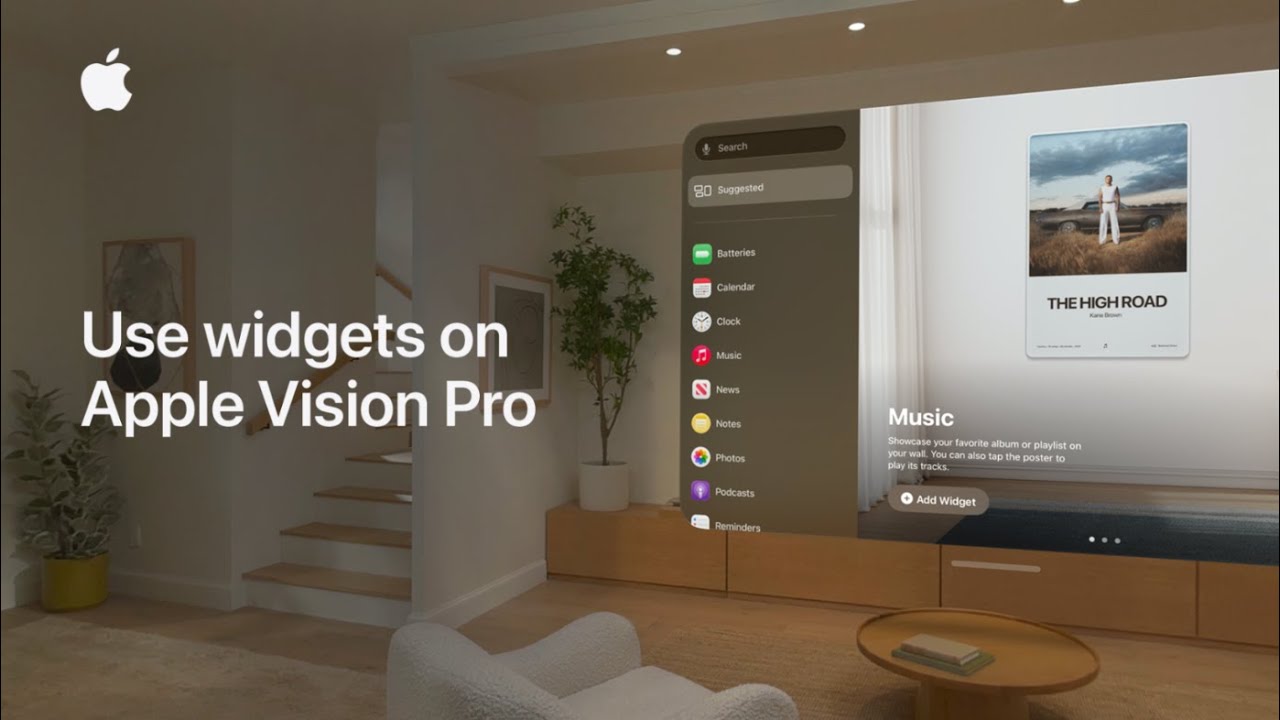
I show you how I add and customize widgets in visionOS 26: first I tap Widgets app in Home View to see suggested widgets or pick an app from the list on the left.
Next I choose Photos and swipe through options like panoramas, spatial photos, or posters until I find one I like. I tap the widget to add it to my space, anchor it to the wall where I want it, and use customization controls to adjust size and appearance.
Once set, the widget integrates into my space and reappears again every time I put on Apple Vision Pro.
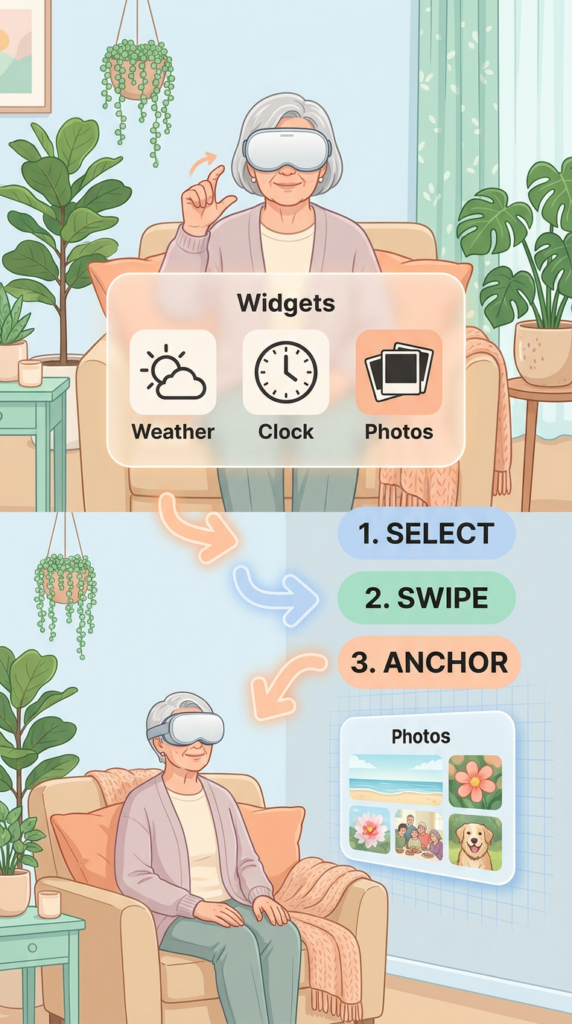
- Tap the Widgets app in Home View to begin.
- Browse suggested widgets or select an app from the left-hand list.
- For Photos, swipe through panoramas, spatial photos, or posters to choose a style.
- Tap the chosen widget to add it, then anchor it to the wall and adjust size/appearance.
- The widget stays integrated in your space and reappears every time you wear Apple Vision Pro.