
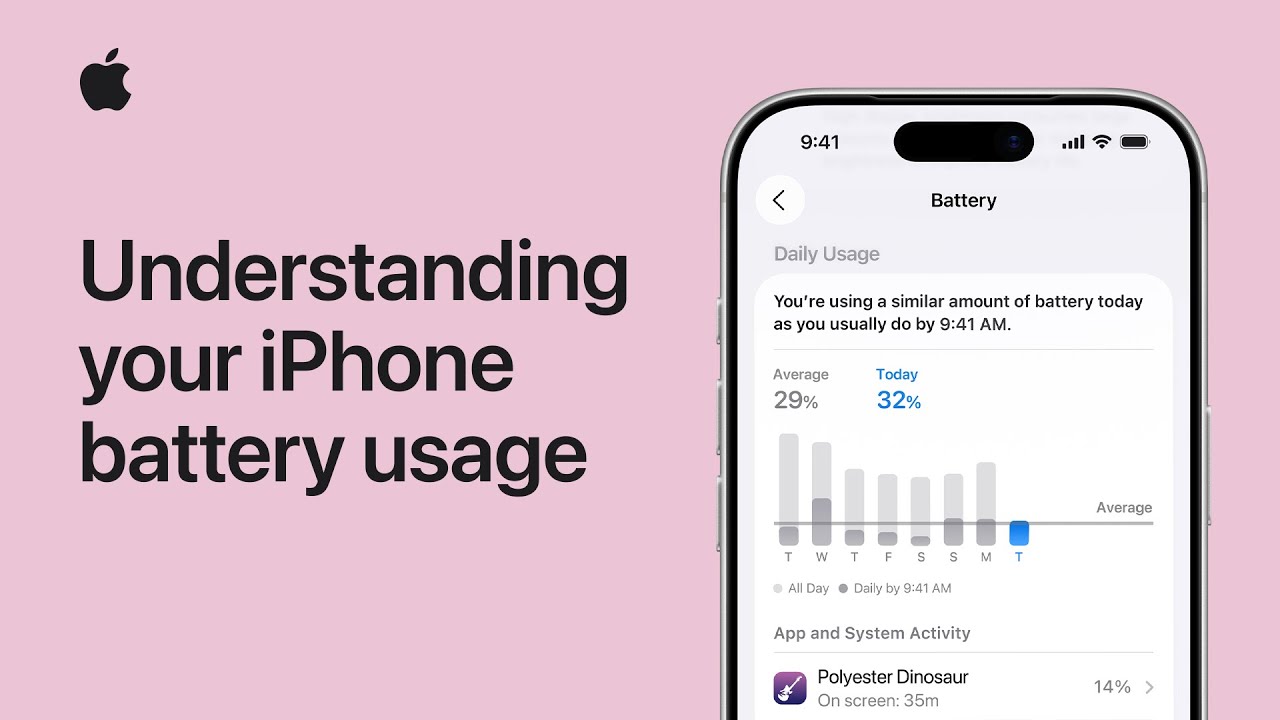
To understand my iPhone battery usage, I start by checking Settings and waiting a couple of days after updates, since background processes can affect battery life.
I look for any alerts in the Battery Insights section, then try to use Wi-Fi instead of cellular to save power.
Next, I go to Settings, tap Battery, and select “View All Battery Usage” to review daily activity, screen time, and charge levels.
I scroll down to see which apps use the most battery and tap each one for details.
Finally, I check battery health and enable Adaptive Power or Low Power Mode to extend battery life.
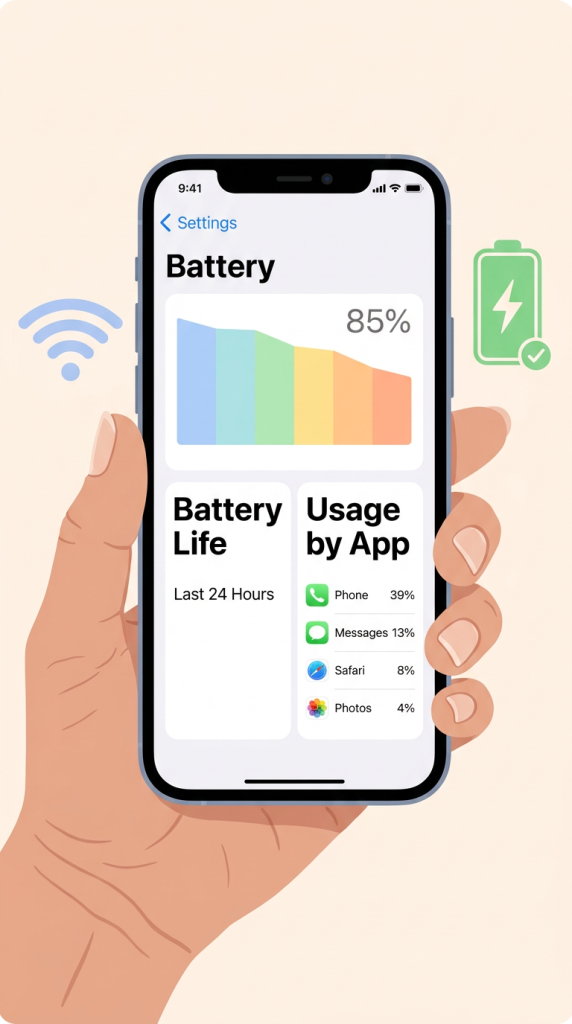
- Check Battery settings and wait after updates for background processes to finish
- Use Wi-Fi instead of cellular to reduce battery drain
- View detailed battery usage, screen time, and charge levels
- Review battery usage by app to identify high consumption
- Enable Adaptive Power or Low Power Mode to extend battery life