
To access Control Center on Apple Vision Pro, start by looking at your hand with your palm facing you, then turn it outward to reveal the status bar showing battery and time.
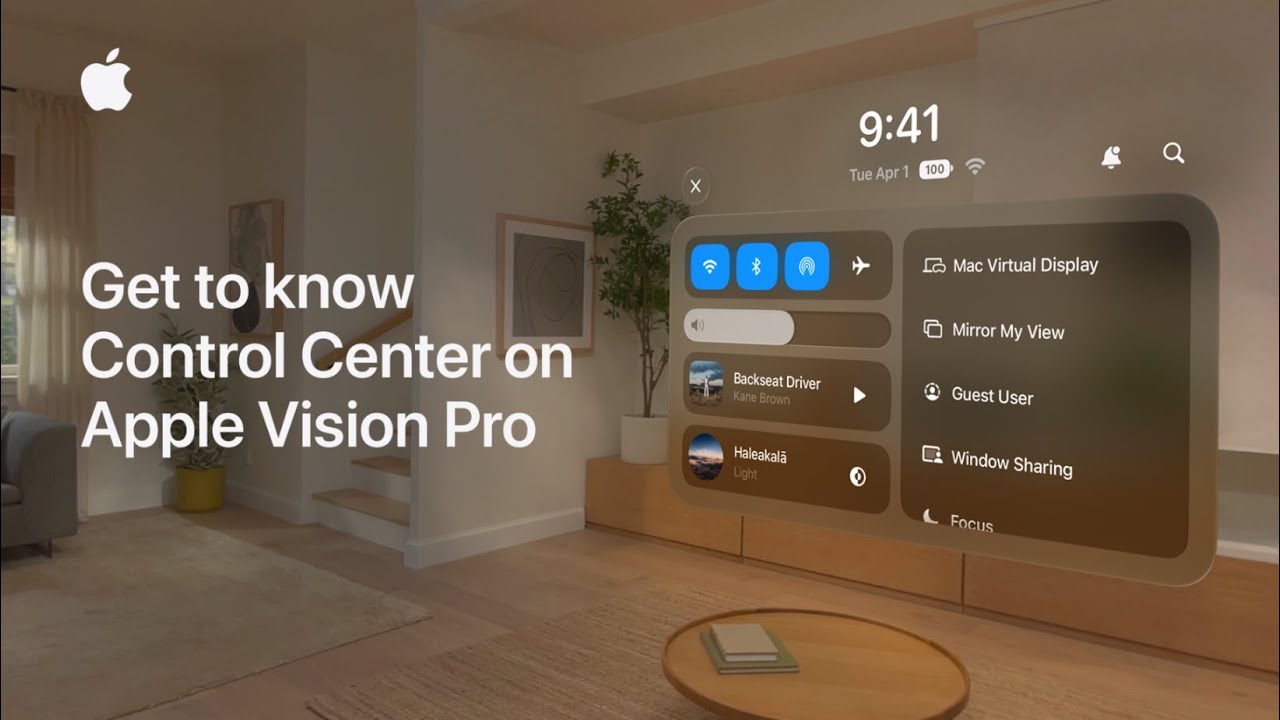
Tap the status bar to open Control Center. On the left, you’ll find controls like Wi-Fi, volume, and Now Playing, while the right side includes features like Mac Virtual Display, Guest User, and Travel Mode.
You can also open Notification Center or Spotlight from the top.
To customize, go to Settings, add controls, or enable alternative access like “Look Upwards.” When finished, tap the Close button to exit Control Center.
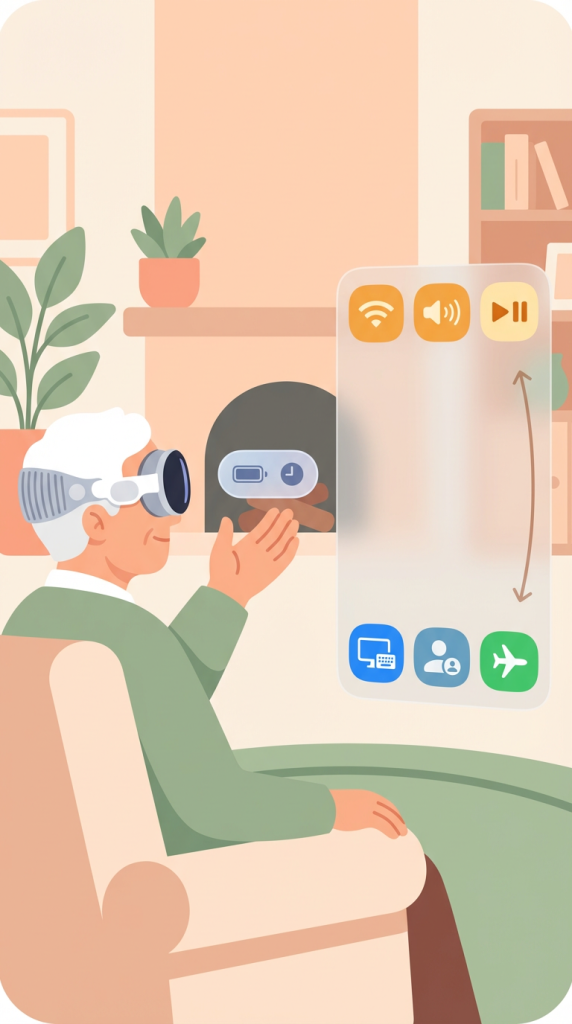
- Look at your hand and turn it outward to reveal the status bar, then tap it to open Control Center.
- Access controls like Wi-Fi, volume, and media on the left side.
- Use features like Mac Virtual Display, Guest User, and Travel Mode on the right.
- Customize Control Center in Settings or enable “Look Upwards” for easier access.
- Tap the Close button to exit Control Center when done.