
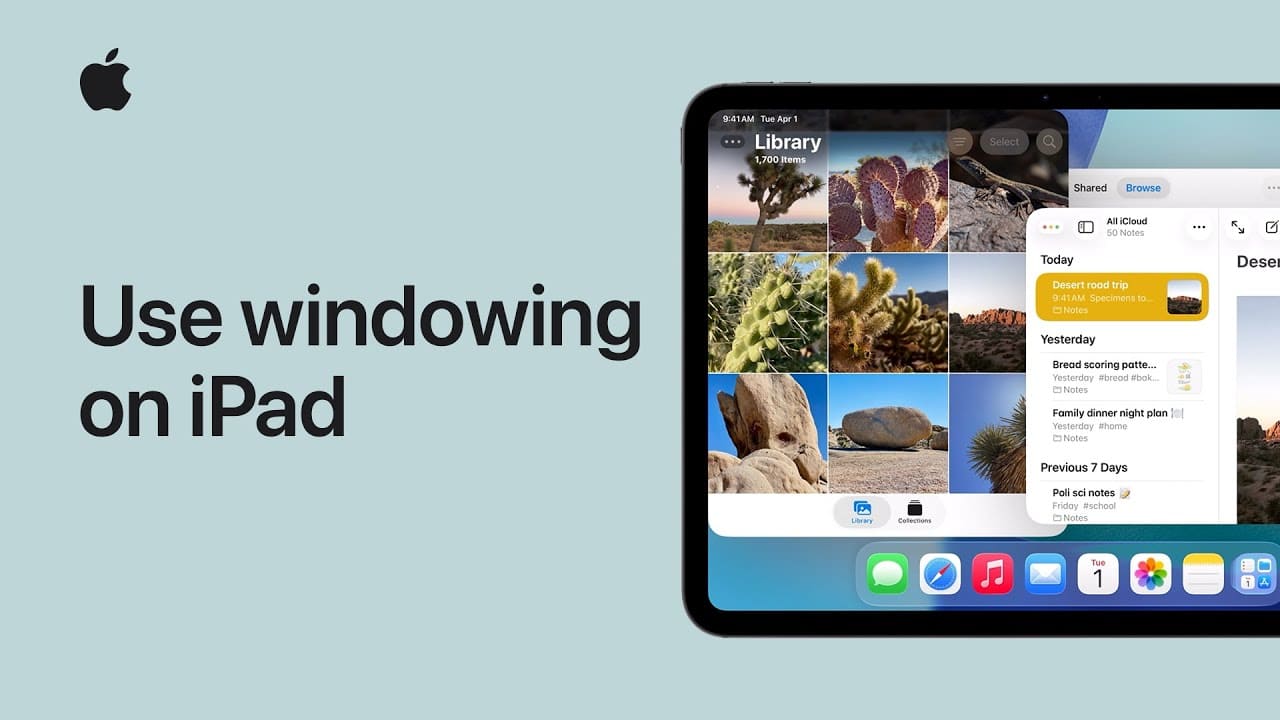
To use windowing on your iPad, start by enabling Windowed Apps in Control Center or Settings. Open your first app, then swipe up slightly to reveal the Dock and drag a second app to the side to view both side by side.
Adjust their size by dragging the divider, and easily move content between them. You can replace apps by dragging new ones from the Dock or return to previous ones with a tap.
To organize your workspace, resize and move windows freely, or minimize them using window controls.
For quick access, use Slide Over by dragging an app over the edge, letting it float above others.

- Use Slide Over by dragging an app to the edge so it stays on top and can be accessed anytime.
- Turn on Windowed Apps in Control Center or Settings to enable multitasking on your iPad.
- Open one app, then drag another from the Dock to the side to use both apps side by side.
- Adjust window sizes by dragging the divider and move content between apps easily.
- Resize, move, or minimize windows to organize your workspace the way you prefer.