
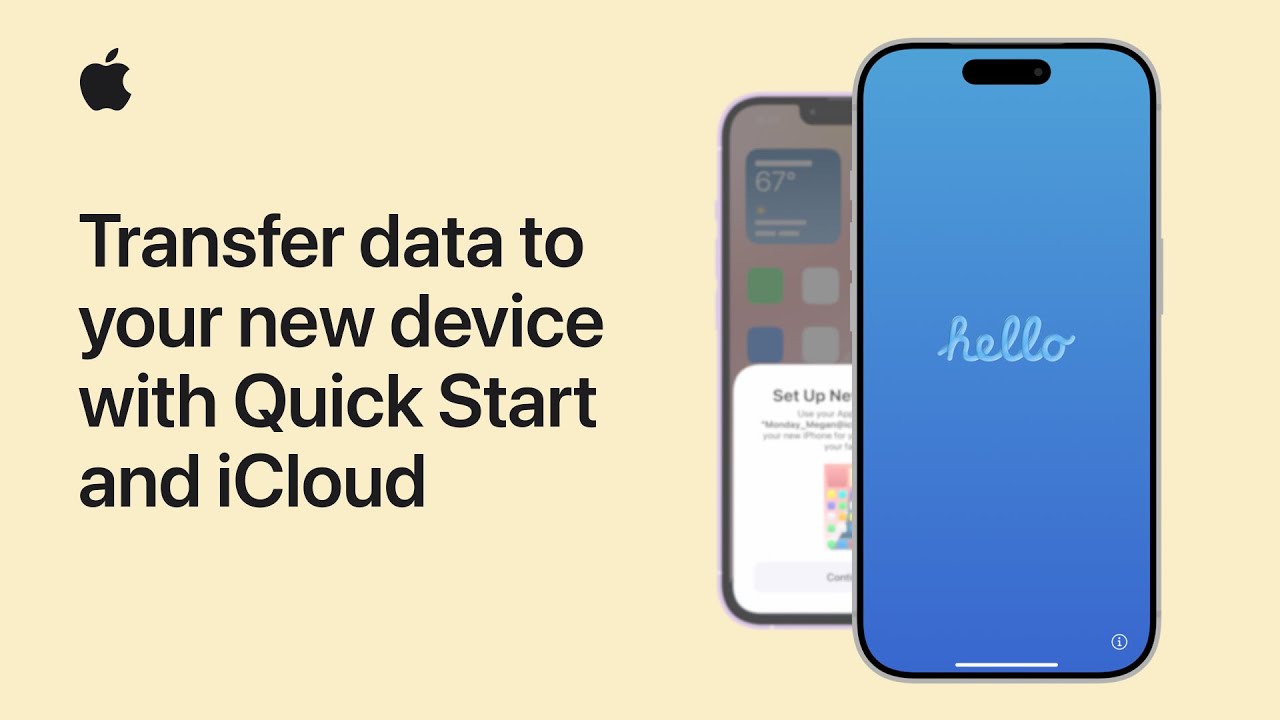
If you have a new iPhone or iPad, I can guide you step by step to transfer your data easily using Quick Start and iCloud.
First, make sure your old device is connected to Wi-Fi, has Bluetooth on, and has a recent iCloud backup. Turn on your new device and place it near your old one, then follow the prompts and scan the animation. Enter your old device passcode to continue.
When asked, choose Download from iCloud to start using your device right away while data transfers in the background.
Agree to the terms, wait for the setup to complete, and once it restarts, your apps and data will continue downloading automatically.

- Prepare your old device by connecting it to Wi-Fi, turning on Bluetooth, and ensuring you have a recent iCloud backup.
- Turn on your new iPhone or iPad, place it near your old device, and follow the Quick Start prompts.
- Scan the animation using your old device and enter your previous passcode on the new device.
- Choose Download from iCloud to start using your device immediately while your data transfers in the background.
- Agree to the terms, wait for the restart, and allow apps and data to finish downloading over Wi-Fi.