
If you’re new to using a Mac, I’ll guide you through the basics step by step so you can feel comfortable right away.
First, I use the trackpad by sliding one finger to move the pointer and clicking anywhere to select items, while two fingers let me scroll or zoom, and three fingers open Mission Control to view all windows. I can adjust these gestures in System Settings.
Next, I explore the Dock, desktop, and menu bar to open apps and manage tasks.
I use Control Center for quick settings, window buttons to organize screens, and Finder to access and manage files easily.
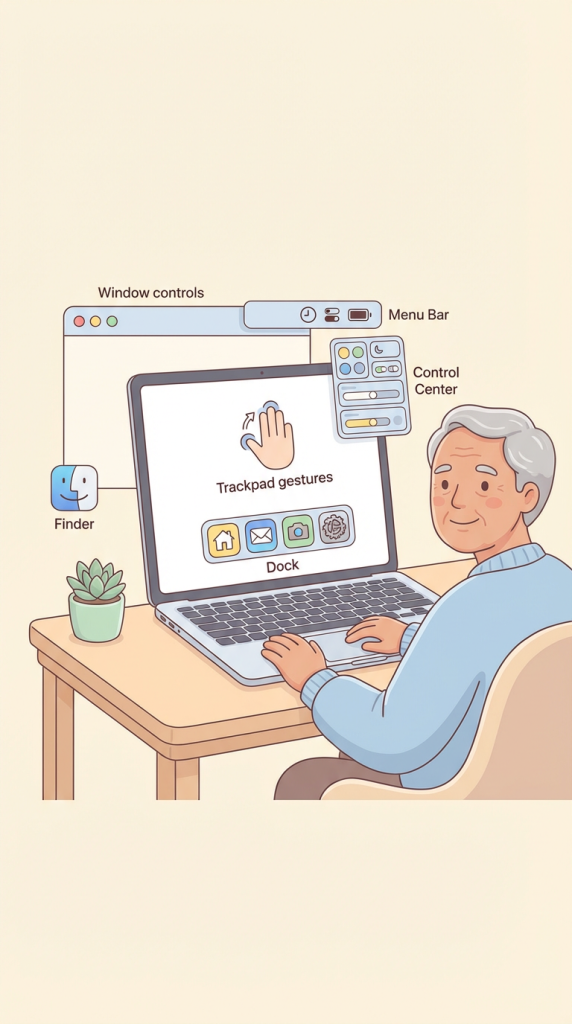
- Master the trackpad by using one finger to move the pointer, two fingers to scroll or zoom, and three fingers to view all open windows in Mission Control.
- Navigate the Dock at the bottom to open apps and use the Menu Bar at the top to access system settings and the Apple menu.
- Use the Control Center in the top-right corner to quickly adjust common settings like Wi-Fi, Bluetooth, screen brightness, and volume.
- Manage your workspace using the colored window controls to expand to full screen, minimize to the Dock, or close windows entirely.
- Organize and access your files, folders, and applications easily by opening the Finder icon located in the Dock.