

If you sometimes struggle to hear people clearly—on the phone, on TV, or in a busy room—you are not alone. The good news is that today’s technology can take spoken words and show them as text on a screen, almost like “subtitles for life.”
This article will walk you through simple tools that:
- Show live captions while someone is speaking
- Transcribe (write out) conversations or meetings
- Turn voice messages into text you can easily read
You don’t need to be “good with computers.” We’ll keep it slow, clear, and practical.
Key Takeaways
- Live captions show spoken words as text on your phone, tablet, or computer in real time—like subtitles during a movie, but for everyday speech.
- Many devices (Android phones, iPhones, Windows PCs, Macs) already include built‑in caption and transcription tools at no extra cost.
- Transcription apps can write out phone calls, doctor visits, and family chats so you can read along and review later.
- AI tools can turn voice messages into text, so you don’t have to replay or strain to hear them.
- Most tools are easy to turn on with a few taps in Settings; you can adjust text size, color, and speed to your comfort.
- You can start small: try captions for one thing—like TV or phone calls—and add more tools only if they’re helpful.
Understanding the Basics: Captions, Transcription, and AI
Before we look at specific tools, it helps to understand a few simple ideas.
What are live captions?
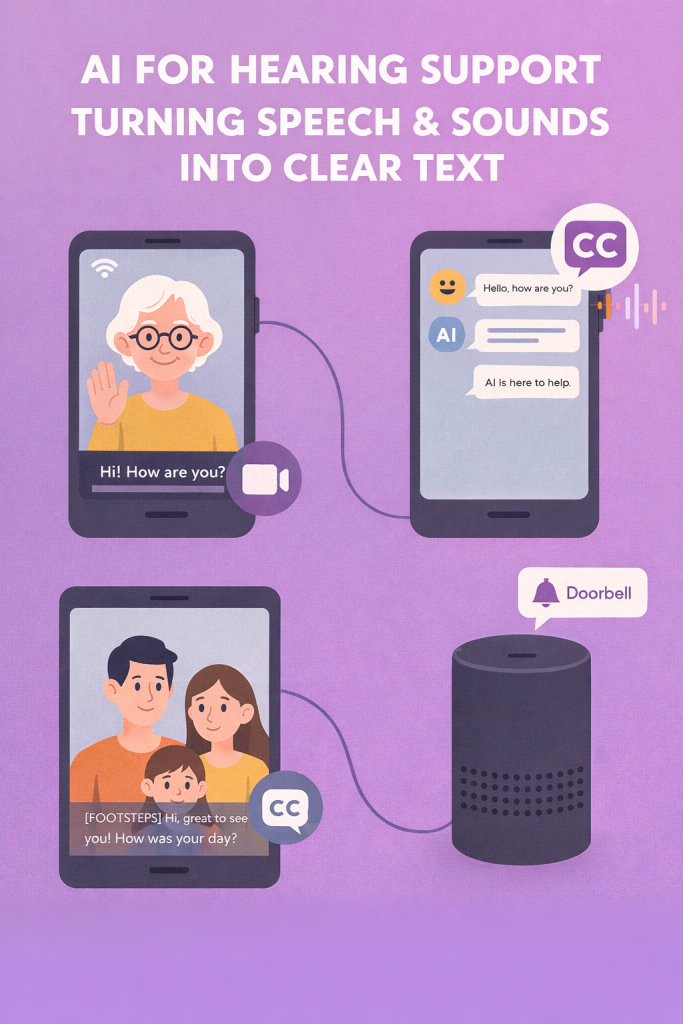
Live captions are text that appears on the screen while someone is talking. For example:
- A friend speaks into your phone’s microphone
- Your phone listens and shows their words as text
- You can read along, even if the sound is hard to hear
Think of it as real‑time subtitles for life, not just for movies.
What is transcription?
Transcription means turning speech into written text, usually for something that already happened:
- A recording of a doctor’s visit → written notes
- A voice memo → a typed version you can read
- A meeting recording → a written summary
Some tools do this automatically using AI (artificial intelligence), which is just a smart computer program that “listens” and writes down what it hears.
Why this matters for hard-of-hearing seniors
These tools can:
- Help you follow conversations without constantly asking “What did you say?”
- Make phone calls and video calls less stressful
- Let you save important information, like instructions from the doctor, in writing
- Give you more independence and confidence in daily life
You don’t have to stop using hearing aids or other support. Think of this as an extra pair of ears—and eyes—helping you out.
1. Live Captions on Your Phone or Tablet
Many modern smartphones and tablets can show captions for speech around you, calls, and videos.
On Android phones and tablets (Live Caption & Live Transcribe)
Most newer Android devices (Samsung, Google Pixel, etc.) include helpful features:
- Live Caption
- Adds captions to videos, podcasts, and sometimes calls.
- Works even if the sound is low.
- Live Transcribe (sometimes called “Sound Notifications” or “Transcribe”)
- Listens through the microphone and shows everything being said around you as text.
- Useful for conversations in person.
How to turn on Live Caption (typical steps):
Steps may vary slightly by brand, but in general:
- Open Settings on your phone.
- Tap Accessibility.
- Look for Live Caption.
- Turn the switch On.
After that, you may be able to quickly turn it on or off using the volume button or the small icon that appears when playing a video.
How to use Live Transcribe:
- Open Settings.
- Tap Accessibility.
- Look for Live Transcribe or Hearing options.
- Turn it on or download it if your phone offers it as a separate app.
Then you usually tap the Live Transcribe icon on your home screen to start. Your phone will listen and show what it hears as text.
Real‑life example:
- You’re at the pharmacy, and the pharmacist is explaining when to take your pills.
- You open Live Transcribe and place the phone near them.
- As they talk, the words appear on the screen.
- You can scroll back later to double‑check.
On iPhones and iPads (Live Captions & Transcription)
Apple has added more hearing‑friendly tools in recent years.
Live Captions (beta on some devices):
- Open Settings.
- Tap Accessibility.
- Find Live Captions (sometimes under Hearing).
- Turn it On.
Your iPhone or iPad will begin showing captions for:
- FaceTime calls
- Some media (videos, podcasts)
- Sounds picked up by the microphone in certain apps
Audio transcription apps on iPhone/iPad:
If Live Captions isn’t available on your model, you can still use transcription apps from the App Store (we’ll cover those in the next section).
Real‑life example:
- Your grandchild calls you on FaceTime.
- With Live Captions turned on, you see their words at the bottom of the screen as they speak.
- If the connection is fuzzy or their voice is soft, you can still follow along by reading.
2. Transcription Apps That Help You Follow and Remember
Transcription apps are programs you can download that specialize in turning speech into text. Many use AI to make the text more accurate and organized.
What these apps can do
- Listen live and show what’s being said
- Save the text so you can read it later
- Sometimes separate speakers (“Speaker 1”, “Speaker 2”)
- Let you search your text—helpful for finding what the doctor said about a specific medicine
Some well‑known categories to look for in your app store:
- “Live transcription,” “speech to text,” or “AI transcription”
- Apps that mention hard‑of‑hearing support or live captions
(Your family or a trusted friend can help you pick an app with good reviews.)
How to use a transcription app (general steps)
On both Android and iPhone, using these apps is usually similar:
- Install the app from the app store (search for “live transcription” or “speech to text”).
- Open the app.
- Tap a Microphone or Start button.
- Place the phone near the person speaking.
- Watch as the text appears on the screen.
- Tap Save or Export to keep the notes if you want.
Helpful everyday uses
- Doctor’s appointments
- Turn on transcription while the doctor talks.
- Ask the doctor’s office if this is okay—they usually understand and agree.
- After the visit, you or a family member can review the notes.
- Family gatherings
- Place the phone in the middle of the table.
- You may not catch every word, but it can help you follow most of the conversation.
- Church services or community meetings
- Use transcription to follow along with the speaker.
- Some buildings even provide Wi‑Fi and are used to people using phones for accessibility.
3. Turning Voice Messages into Easy-to-Read Text
Many people now send voice messages instead of typing. These can be hard to hear, especially if:
- The speaker is far from the microphone
- There is background noise
- You listen in a noisy place (bus, waiting room, etc.)
AI can help by taking these voice messages and turning them into clear text.
Voice messages in messaging apps
Some messaging apps already include built‑in transcription:
- You tap a small “Transcript”, “Caption”, or “Read” button under a voice message.
- The app listens and shows the words as text.
If your app doesn’t offer this, you can still use a separate transcription app:
- Play the voice message on speaker (turn the volume up).
- Open your transcription app on the same phone or another device.
- Let the app “listen” to the message.
- It will show the words in text form.
This may feel a bit clumsy at first, but after a few tries, it becomes easier.
Voice memos and personal notes
You can also speak into your phone and let AI create written notes for you.
For example:
- You record a quick voice memo: “Pick up prescription on Tuesday at 3 p.m.”
- The app turns that into text and saves it as a note or reminder.
- Some apps can even connect to your calendar or reminder list.
This can help if:
- You get tired typing on a small screen
- You think better when speaking than when writing
4. Making Text Comfortable for Your Eyes
Hearing support is only helpful if you can easily read what appears on the screen. Most phones and apps let you adjust how the text looks.
Adjusting text size
On both Android and iPhone:
- Open Settings.
- Tap Display or Accessibility.
- Look for Text Size, Font Size, or Display Size.
- Move the slider until the text is large and clear, not crowded.
Many caption or transcription apps also have their own text size settings inside the app. Look for:
- A small “A A” icon
- A Settings or Gear icon
Changing colors and contrast
If light text on a bright screen is hard on your eyes, you can:
- Turn on Dark Mode (light text on a dark background)
- Increase contrast so the letters stand out more
- Use Bold Text so letters are thicker
You can usually find these in Accessibility → Display or Accessibility → Vision.
Using headphones or hearing aids together with captions
Captions don’t replace sound. Sometimes, using both sound and text together works best:
- Turn on captions
- Use your hearing aids or headphones
- Follow along by both listening and reading
Many people find this combination much less tiring.
5. Safety, Privacy, and Comfort
Because these tools “listen” to speech, it’s wise to think about privacy and safety, especially with sensitive information.
Things to keep in mind
- Ask first: If you’re recording or transcribing a conversation with another person (like a doctor or lawyer), let them know. Most will say yes if it helps you understand.
- Check what’s being saved: Some apps save audio and text online (in “the cloud”). Others keep it only on your device.
- If you’re worried, read the Privacy section in the app’s description or ask a tech‑savvy family member to help.
- Use a screen lock: Make sure your phone or tablet has a PIN, password, or fingerprint lock so that personal notes stay private.
Respecting your comfort level
You do not have to use every new feature at once. It’s okay to:
- Use transcription only for medical visits
- Use captions just for video calls with family
- Ignore tools that feel too complicated
The goal is to support you, not to overwhelm you.
6. Getting Help from Family, Friends, or Caregivers
If you feel unsure about setting all this up, you don’t have to do it alone.
Here are some ways to get help:
- Ask a family member or friend to:
- Turn on Live Captions or a transcription app
- Adjust the text size and colors
- Show you how to start and stop captions
- Ask your audiologist, hearing specialist, or doctor if they know about hearing‑assistive apps. Many clinics are familiar with these tools.
- Look for senior centers or community tech help sessions.
- Many libraries and senior centers now have volunteers who help older adults with smartphones and accessibility features.
When someone helps you set things up, ask them to:
- Write down simple step‑by‑step instructions on paper
- Use big writing and simple words (“Tap here, then tap the blue button”)
- Show you a few times, slowly, and let you try yourself
Final Thoughts
Technology can feel intimidating, especially when it changes so quickly. But tools like live captions, transcription apps, and AI for voice messages are designed to make life easier, not harder—especially for people who are hard of hearing.You don’t need to learn everything at once. Even turning on one helpful feature, like captions during calls with your family or transcription at doctor visits, can make a big difference in your day‑to‑day comfort and confidence.