
We’ve all seen those annoying spam texts or mystery calls that seem to come out of nowhere. Some even pretend to be from your bank or delivery service. The good news is, your iPhone has some clever built-in protection powered by artificial intelligence (AI). Apple uses AI to quietly watch for warning signs and help stop scams before they reach you.
In this guide, we’ll look at how AI helps filter messages, block unwanted calls, and spot phishing attempts—all without you needing to download anything extra. It’s designed to help you stay safe online, even if you’re not very tech-savvy.
Table of Contents
Key Takeaways
- Apple’s AI automatically detects and filters spam texts and calls.
- Fraud alerts warn you if a message or website looks suspicious.
- Siri and Mail use AI to flag phishing links or fake senders.
- You can adjust settings to block unknown callers and report spam easily.
- These features work quietly in the background—no setup required.
How AI Filters Spam Messages
When a text message arrives, your iPhone’s AI checks several clues to decide whether it’s legitimate. It looks at who sent it, how often similar messages have been flagged, and whether the text includes known scam phrases or strange links.
Messages that seem suspicious are automatically moved into a separate folder called “Junk” or “Unknown Senders.” This makes it less likely that you’ll accidentally tap a harmful link.
If you use iMessage, Apple’s AI also works with spam reports from other users. So, when enough people mark a sender as spam, the system learns to recognize similar messages in the future. This means your phone gets smarter about spotting scams over time.
Smarter Call Detection
Have you ever gotten a call that shows a number similar to yours, or one that starts with your area code but isn’t familiar? Many scammers do this to trick people into answering. Apple’s AI helps protect you by comparing incoming numbers to known spam databases and patterns.
With Silence Unknown Callers turned on, your iPhone automatically sends calls from numbers not in your contacts straight to voicemail. You’ll still see the call in your recent list, but it won’t ring or interrupt you.
Newer iPhones also use AI-powered fraud detection for messages and FaceTime calls. If something seems suspicious—like a request for money or a strange link—the system may display a warning before you respond.
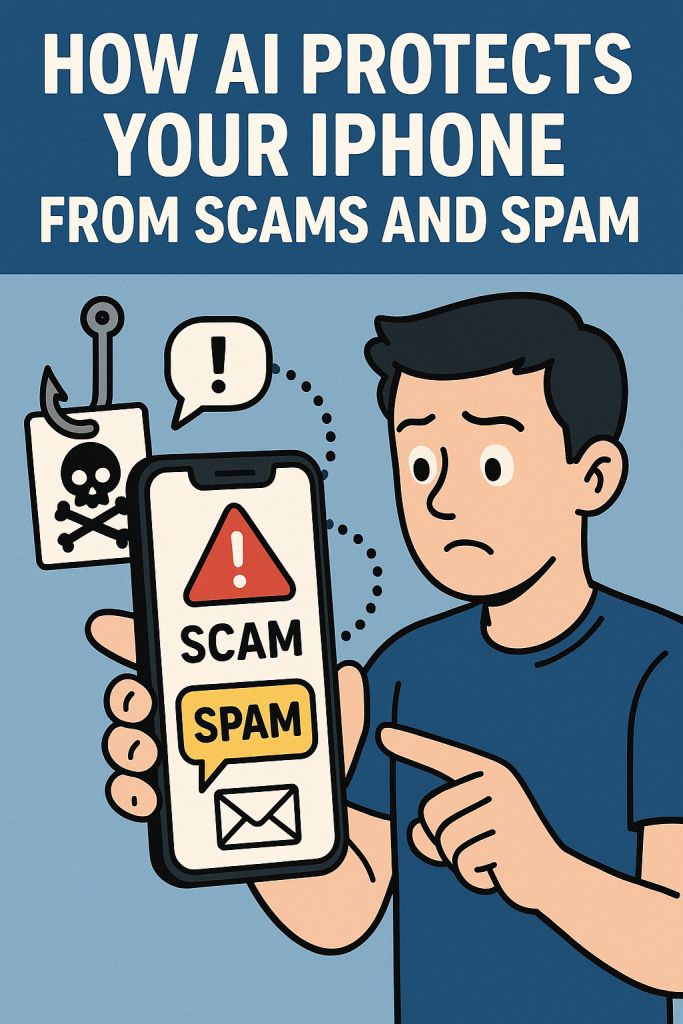
Fraud and Phishing Alerts
Apple’s built-in Mail app includes AI features that can recognize fake emails. It checks for things like mismatched addresses, unusual requests, and copied company logos. If something doesn’t seem right, it may display a “Potential Fraud” or “Suspicious Sender” warning.
Safari, Apple’s web browser, works in a similar way. If you tap a link that leads to a known phishing site, AI quickly blocks the page and shows a “Deceptive Website Warning.” This helps prevent you from accidentally entering passwords or personal details on fake sites.
Protecting Apple Pay and Messages
AI also helps keep your financial information safe. When you use Apple Pay, it checks transaction patterns for anything unusual. If it spots activity that doesn’t match your habits, you may receive an alert to confirm it’s really you.
In Messages, Apple’s Sensitive Content Warning uses on-device AI to detect potentially harmful images or scam content before you open them. The best part? The detection happens privately on your iPhone, not on Apple’s servers, so your messages remain secure.
Simple Steps You Can Take
AI does a lot automatically, but you can boost your iPhone’s protection even more with these simple settings:
- Turn on Silence Unknown Callers
Go to Settings → Phone → Silence Unknown Callers.
This keeps spam calls from bothering you. - Filter Unknown Senders in Messages
Go to Settings → Messages → Filter Unknown Senders.
Texts from people not in your contacts will go to a separate list. - Report Junk Messages
When you see a “Report Junk” option in iMessage, tap it. This helps Apple improve its spam detection. - Enable Fraud Warnings in Safari
Go to Settings → Safari → Fraudulent Website Warning.
This protects you from visiting known scam sites. - Keep iOS Updated
Apple regularly improves its AI systems through software updates. Always install the latest version to stay protected.
Real-Life Example
Imagine you receive a text that says, “Your package couldn’t be delivered. Click here to reschedule.” It looks real, but the link isn’t from a company you know. Your iPhone’s AI spots that the web address doesn’t match any official delivery service and automatically moves it to Junk.
Or perhaps you get a phone call claiming to be from “Apple Support” asking for your password. With Silence Unknown Callers turned on, that call never interrupts your day—and you can check later without any risk.
Final Thoughts
You don’t need to be a tech expert to stay safe from scams. Apple’s AI quietly does the heavy lifting, blocking most threats before you even notice them. By turning on a few extra settings and staying cautious about unknown messages or links, you’re giving yourself the best defense possible.
Remember, AI isn’t replacing your judgment—it’s simply watching your back. With your iPhone’s smart protection, you can enjoy your day knowing that scams and spam are much less likely to get through.