
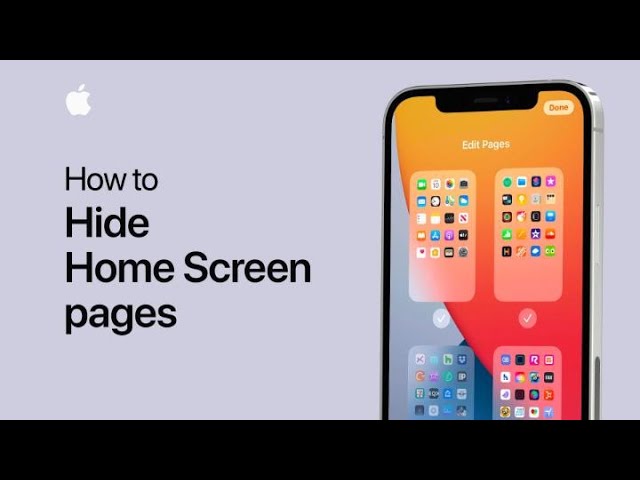
To keep your most used apps accessible and hide others, start by touching and holding an empty area of your Home Screen until the apps begin to jiggle. Tap the dots at the bottom of the screen to view thumbnails of your Home Screen pages.
If a page is visible, it will have a checkmark below its thumbnail. To hide a page, tap its checkmark to remove it. To bring a hidden page back, tap the empty circle where the checkmark was.
Once you’ve selected the pages you want visible, tap Done, then tap Done again to finalize your choices. This will keep your Home Screen organized and tidy.
Summary:
– Touch and hold an empty area of the Home Screen until apps jiggle.
– Tap the dots at the bottom to view page thumbnails.
– Tap a checkmark to hide a visible page, or tap an empty circle to show a hidden page.
– Select the pages you want visible.
– Tap Done twice to finalize and organize your Home Screen.