
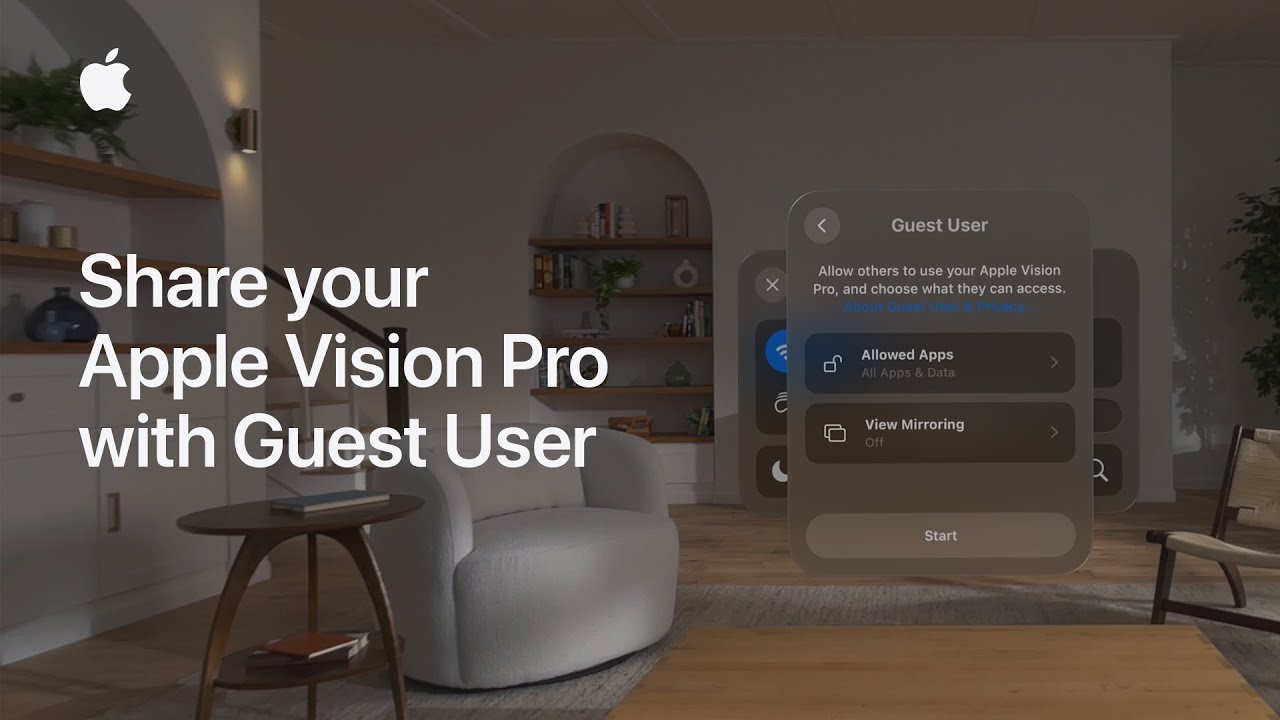
To enable Guest User on your Apple Vision Pro, start by accessing the Control Center by looking at the small arrow icon at the top of your view and tapping your fingers together. Open the controls and find the Guest User option, which appears as a head inside a dotted circle. In the Setup window, choose whether to allow access to Opened Apps Only or All Your Apps and Data.
You can also enable View Mirroring to see what your guest sees. Tap Start to activate Guest User, then hand over the device and battery. Remember to remove any Zeiss Optical Inserts and avoid pressing the top button or Digital Crown during the handoff. Your guest can use the device until they remove it, which will automatically end Guest User and return the settings to your own. For more details, check out the Apple Support YouTube channel or Apple Vision Pro playlist.
Summary:
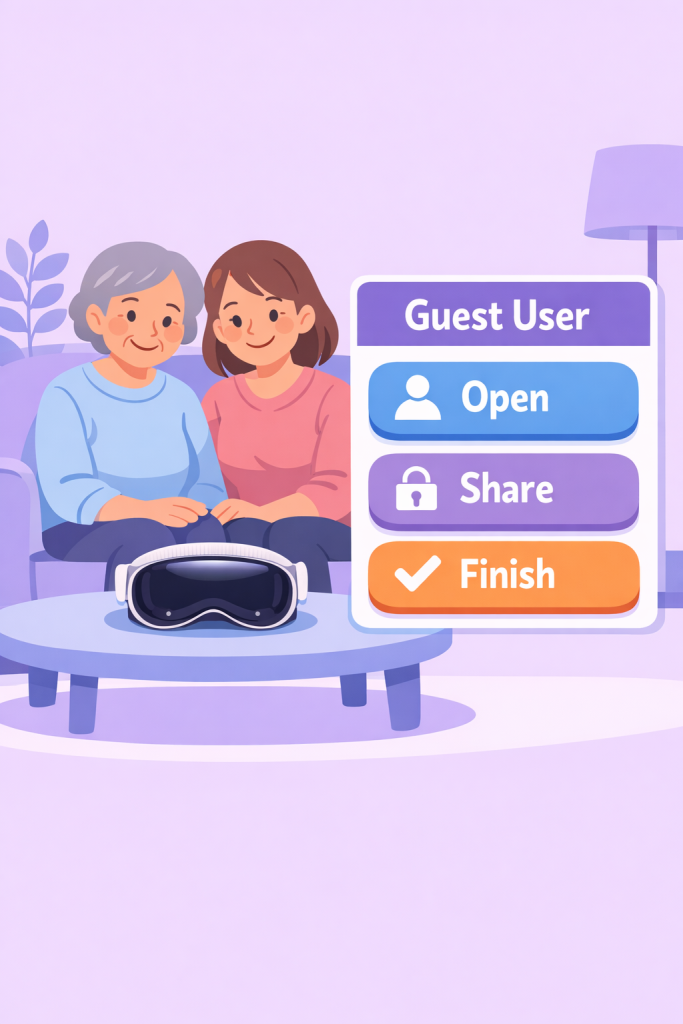
– Access Control Center by looking at the arrow icon and tapping your fingers together.
– Select Guest User and choose access level: Opened Apps Only or All Your Apps and Data.
– Enable View Mirroring if desired, then tap Start to activate Guest User.
– Hand over the device, removing any Zeiss Optical Inserts and avoiding pressing the top button or Digital Crown.
– Guest User session ends automatically when the device is removed, reverting to your settings.