
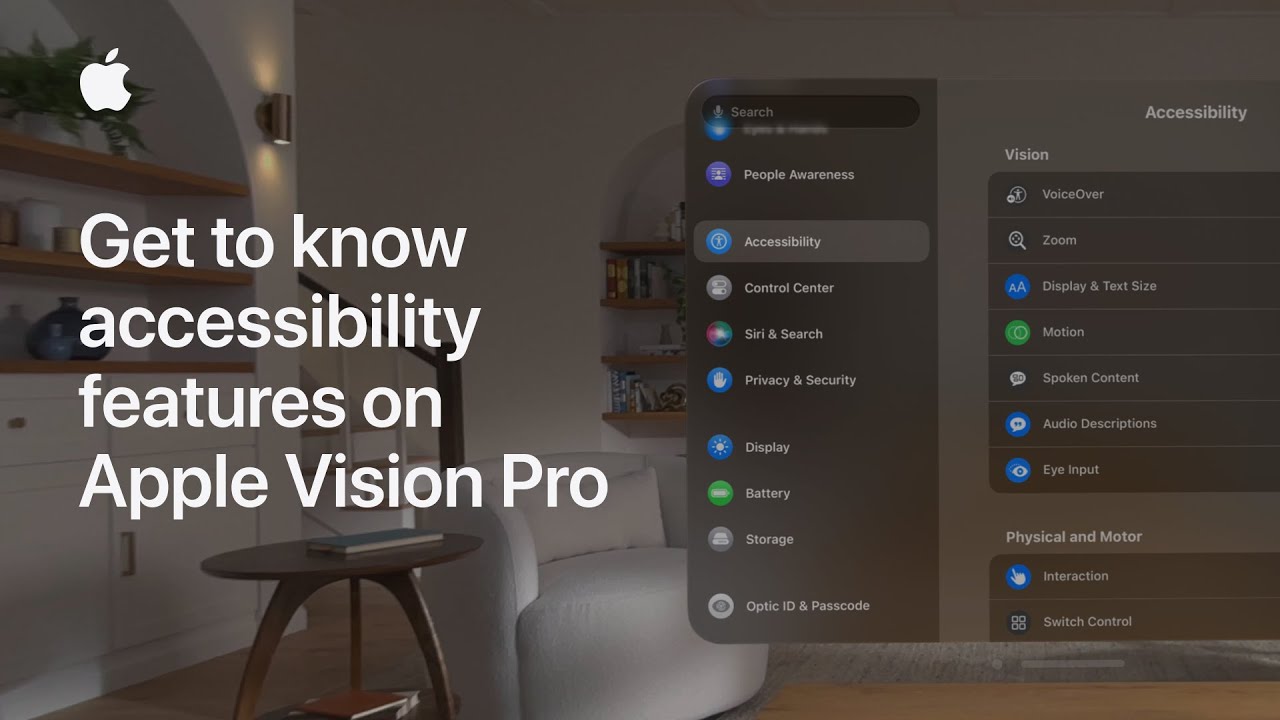
To personalize accessibility features on your Apple Vision Pro, start by accessing Settings from Home View, then navigate to Accessibility. In the Accessibility menu, scroll to the Physical and Motor section and explore options like Dwell Control, which allows interaction without hand gestures, and Pointer Control, using head position or hand movements. For quick access, go to Accessibility Shortcut in Settings, select the features you want to add such as Assistive Touch or Pointer Control, and close Settings. You can then triple-click the Digital Crown to activate these features easily. Explore further settings to address various vision, motor, hearing, and learning needs.
Summary:
– Access Accessibility settings from Home View by opening Settings.
– Enable features like Dwell Control and Pointer Control in the Physical and Motor section.
– Add Assistive Touch and Pointer Control to your Accessibility Shortcut.
– Triple-click the Digital Crown to quickly access these features.
– Explore additional settings to support vision, motor, hearing, and learning needs.