
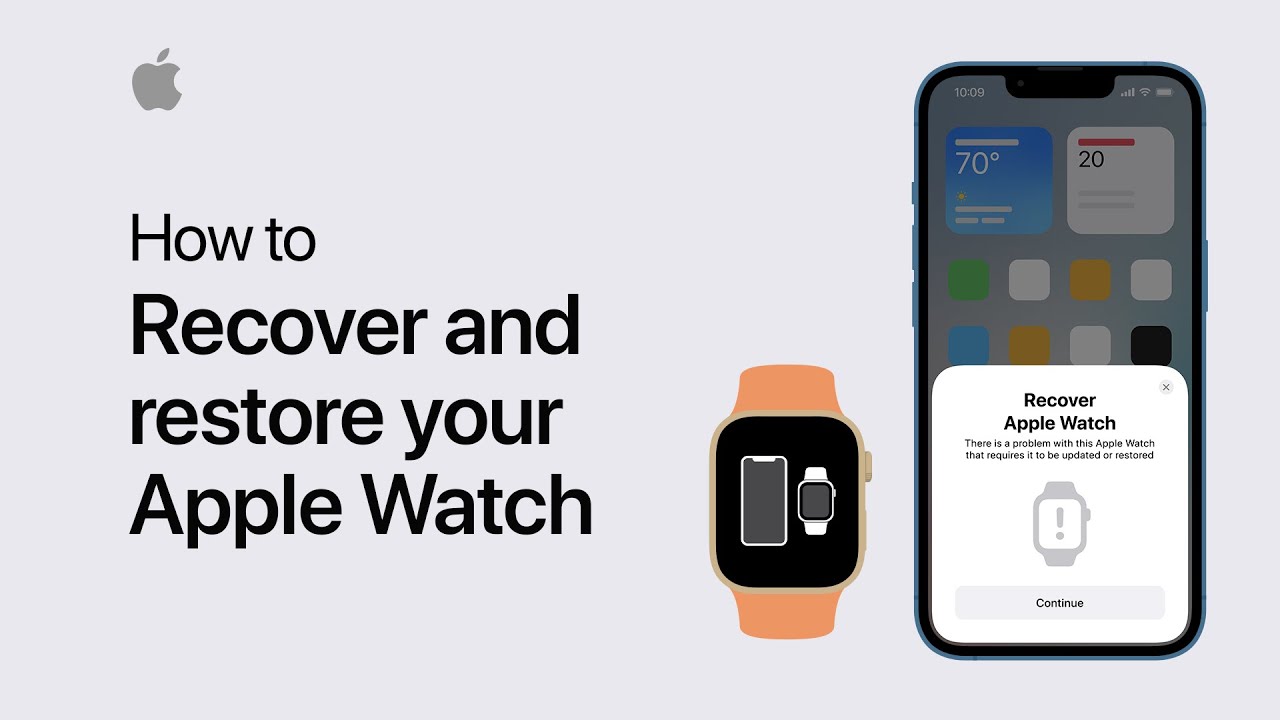
If your Apple Watch shows an iPhone and Apple Watch icon or a red exclamation point, you may need to recover it. First, ensure your watch is charged to at least 50% and remains on its charger throughout the process. Also, confirm your iPhone is updated to iOS 15.4 or later, and both devices are connected to Wi-Fi and Bluetooth.
If a recovery screen appears, or if you see a red exclamation point, double-click the side button to bring it up. Place your iPhone and Apple Watch close together, tap Continue on your iPhone, and enter the code displayed on the watch. The recovery process will start, updating your watch to the latest version of watchOS. Your watch will restart once recovery is complete, displaying your selected watch face and complications. For further assistance, contact Apple Support.
Summary:
– Ensure your Apple Watch is charged to at least 50% and keep it on the charger.
– Verify your iPhone is updated to iOS 15.4 or later, and both devices are connected to Wi-Fi and Bluetooth.
– If a recovery screen appears or you see a red exclamation point, double-click the side button on your watch.
– Bring your iPhone close to your Apple Watch, tap Continue on your iPhone, and enter the code shown on the watch.
– The recovery process will update your watch to the latest watchOS version and restart it, displaying your watch face and complications.