
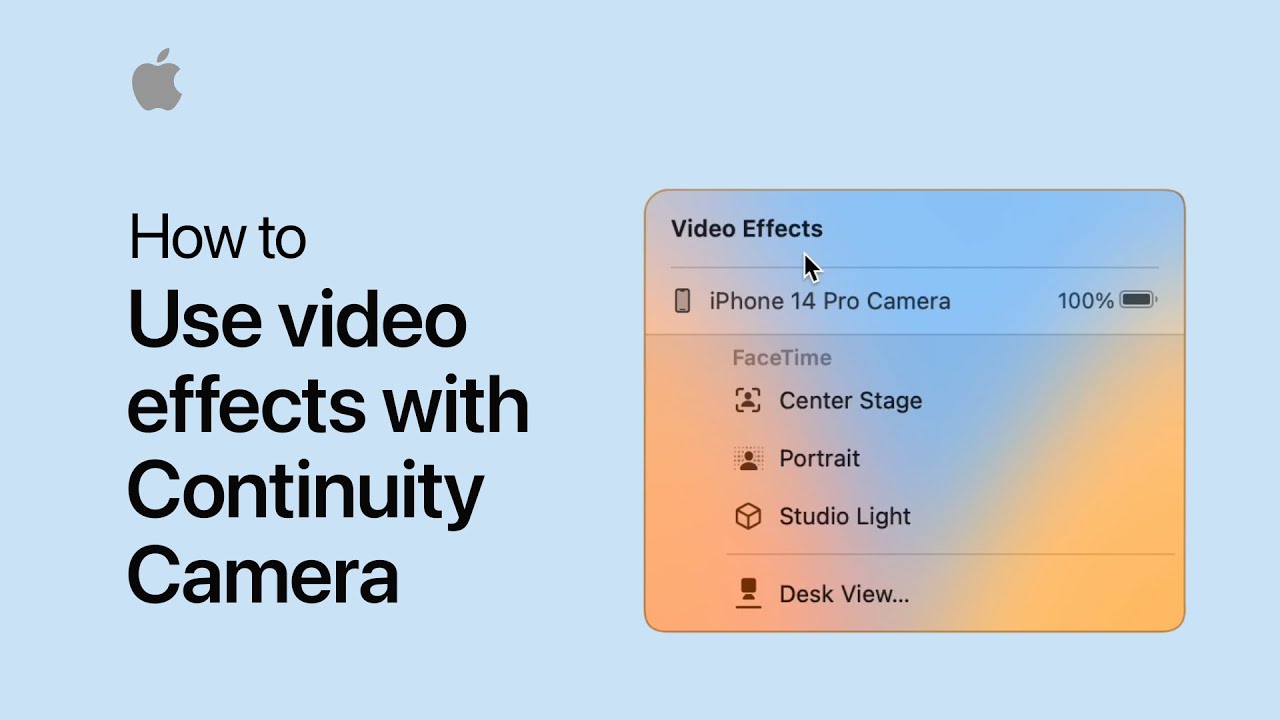
To add video effects while using Continuity Camera for FaceTime on a Mac, start a FaceTime call and use your iPhone as a webcam. Open Control Center and click “Video Effects” to choose from options like Center Stage, which keeps you centered in the frame, Portrait mode to blur the background, and Studio Light to illuminate your face. You can apply one effect or combine multiple effects simultaneously for a polished look during your call.
Summary:
– Start a FaceTime call using Continuity Camera with your iPhone as a webcam.
– Open Control Center and select “Video Effects.”
– Choose Center Stage to keep you centered in the frame.
– Apply Portrait mode to blur the background or Studio Light to illuminate your face.
– Combine effects or use them individually for enhanced video during your call.