
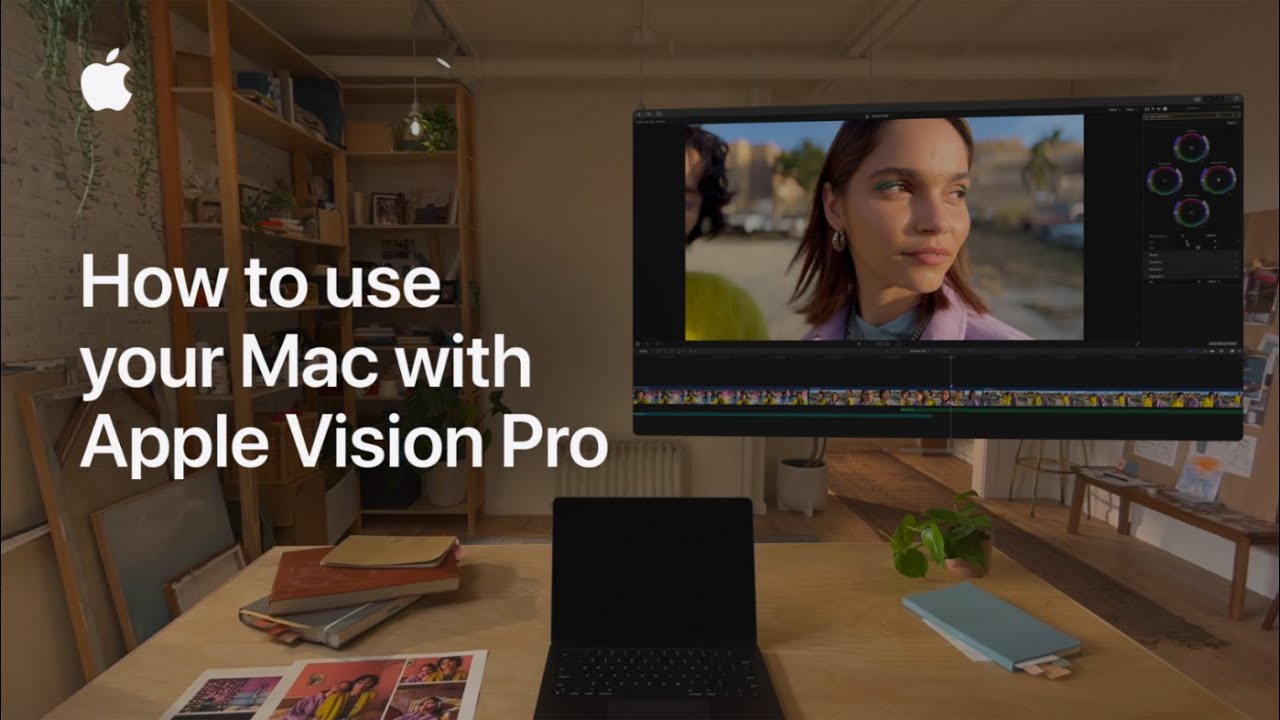
With Mac Virtual Display, you can use Apple Vision Pro as a large, private display for your Mac. First, ensure your Mac is up to date with macOS Sonoma or later, and that both your Mac and Apple Vision Pro are signed in with the same Apple ID, have two-factor authentication on, and have Wi-Fi, Bluetooth, and iCloud Keychain enabled. To connect, open and activate your Mac, then look at it through Vision Pro and tap the Connect button when it appears. You can also enable Mac Virtual Display through Control Center and adjust the display size and position as needed. To disconnect, tap the Close button at the bottom of the window.
Summary:
– Mac Virtual Display allows you to use Apple Vision Pro as a large, private display for your Mac.
– Ensure your Mac is running macOS Sonoma or later, and both devices are signed in with the same Apple ID, with Wi-Fi, Bluetooth, and iCloud Keychain enabled.
– Connect by looking at your Mac through Vision Pro and tapping the Connect button, or enable it through Control Center.
– You can adjust the display size and position within Vision Pro.
– Disconnect by tapping the Close button at the bottom of the window.