
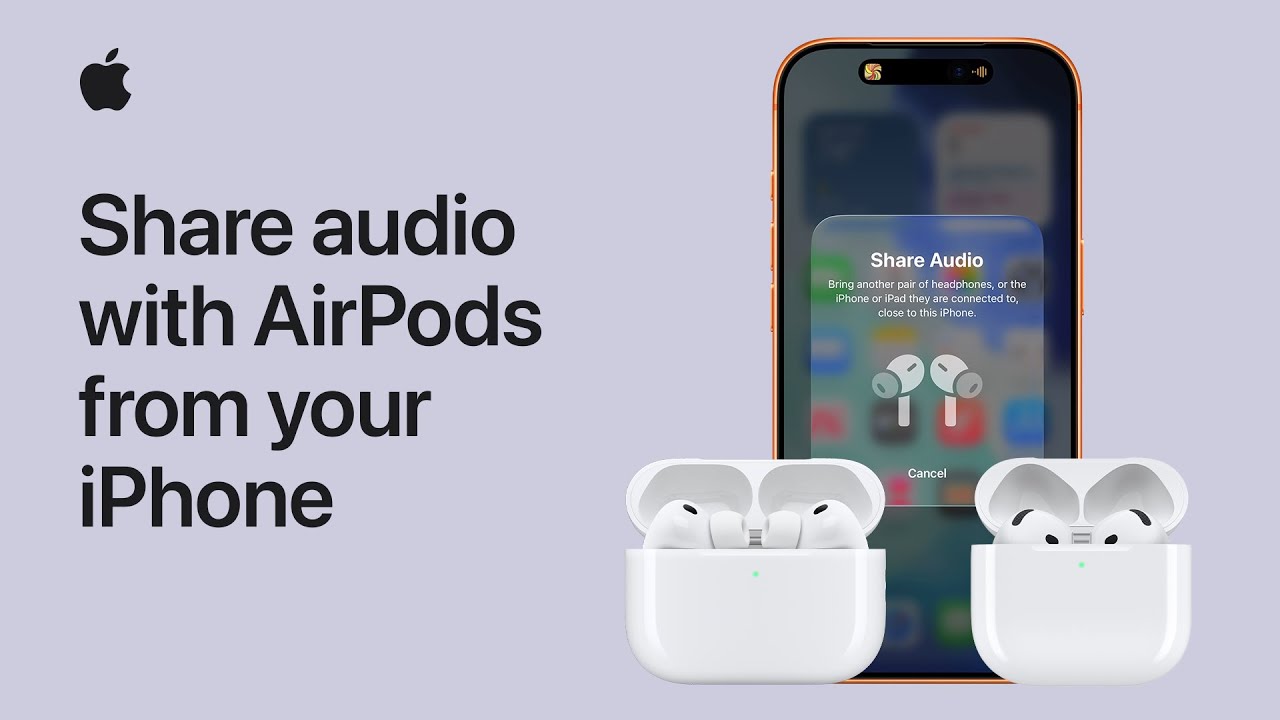
To listen with a friend, start by wearing your AirPods and opening the Control Center on your iPhone. Tap the AirPods icon in the Now Playing section, then select the Share button to begin the process.
If your friend is already wearing their AirPods, have them bring their iPhone close to yours and tap Join. If their AirPods are in the case, simply open the lid near your device and tap Share Audio once they appear.
You may need to double-tap their case or hold the setup button to finish the temporary connection. Once linked, you can independently adjust the volume for each person.

- Start by wearing your own AirPods, then open the Control Center on your iPhone and tap the AirPods icon in the Now Playing section.
- Tap the Share button and have your friend bring their iPhone near yours to tap Join, or simply open their AirPods case lid close to your device.
- Once their AirPods appear on your screen, tap Share Audio and have your friend double-tap their case or hold the setup button to confirm the temporary link.
- If prompted about Find My location sharing, tap OK to finalize the connection between both sets of headphones.
- You can now listen together and use the Control Center to set independent volume levels for each person’s AirPods.