
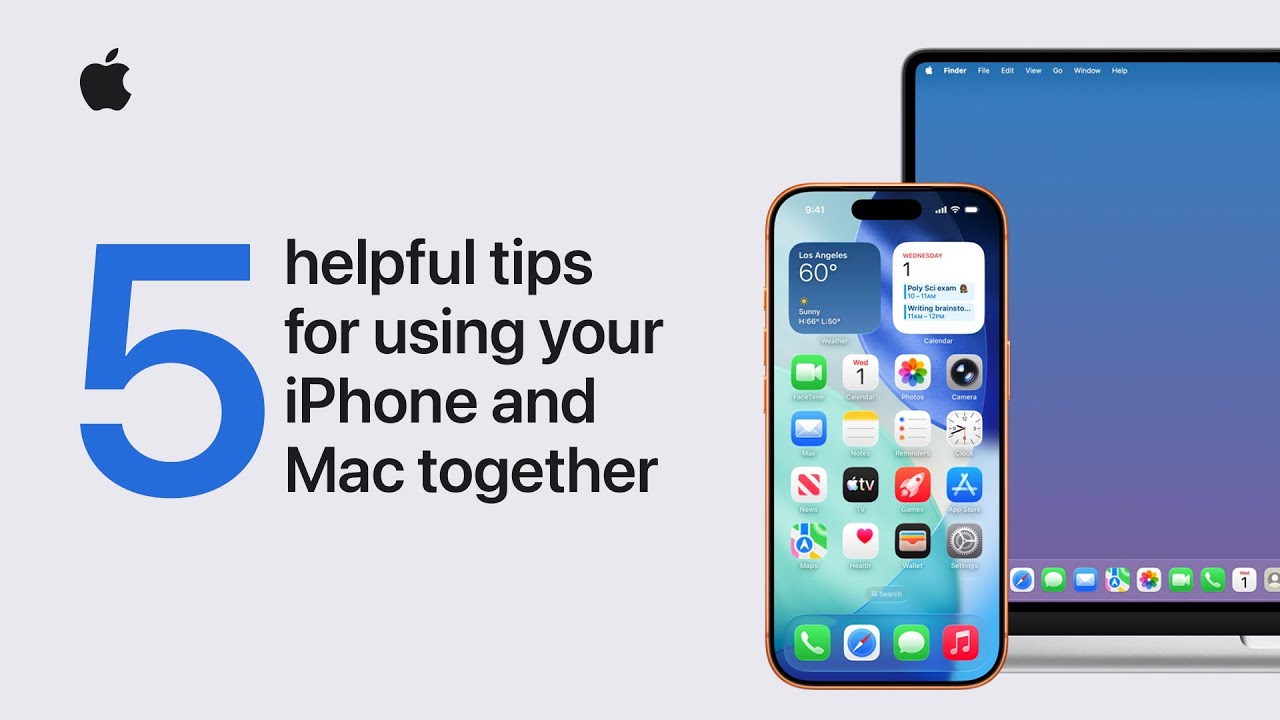
To get more done by using your iPhone and Mac together, first ensure both devices are on the latest software and signed into the same Apple Account with Bluetooth, Wi-Fi, and Handoff enabled.
You can start by using Universal Clipboard to copy text or photos on your iPhone and simply paste them directly into a document on your Mac. Next, try streaming videos via AirPlay by tapping the share button on your phone and selecting your Mac as the display.
You can also scan physical documents by control-clicking on your Mac to trigger your iPhone camera, which then sends the scan instantly to your computer.
Finally, use AirDrop to wirelessly share files between devices or add iPhone widgets to your Mac desktop for a seamless, productive experience.

- Sync your iPhone and Mac by signing into the same Apple Account and enabling Bluetooth, Wi-Fi, and Handoff on both devices.
- Use Universal Clipboard to copy text, images, or videos on one device and instantly paste them onto the other for seamless editing.
- Stream content like videos or photos from your iPhone to your larger Mac display using the AirPlay feature found in the share menu.
- Scan physical documents directly into Mac apps like Notes or Mail by using your iPhone’s camera as a remote scanner.
- Share files wirelessly with AirDrop or customize your Mac desktop by adding helpful widgets directly from your favorite iPhone applications.