Get Moving: Best iPhone Fitness Apps for Active Agers

Staying active is crucial for maintaining health and vitality, especially as we age. With the convenience of smartphones, incorporating regular exercise into your daily routine has never been easier. In this article, we highlight the best iPhone fitness apps specifically designed for active agers. These apps offer tailored workouts, easy-to-follow instructions, and features that make staying fit both fun and accessible.

Table of Contents

SilverSneakers GO

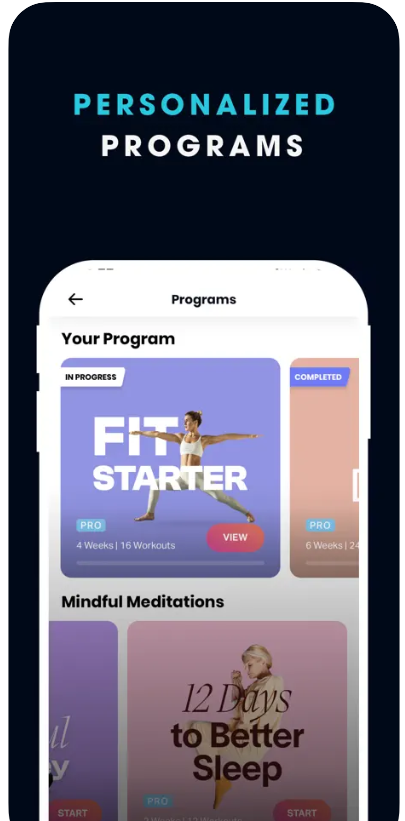
Designed specifically for older adults, SilverSneakers GO offers a variety of workout programs including strength training, walking, flexibility, and mobility exercises. The app features easy-to-follow exercise demonstrations, activity tracking, and reminders to help seniors stay on track. It also helps users find nearby fitness locations and classes​.

Key Features

  • Customizable Workouts: Offers a variety of workout programs tailored to seniors, including strength training, walking, flexibility, and mobility exercises​.
  • Location Finder: Helps users find nearby fitness locations and classes that accept SilverSneakers membership​.
  • Activity Tracking and Reminders: Tracks progress and sets reminders for scheduled workouts to help seniors stay consistent with their fitness routines.
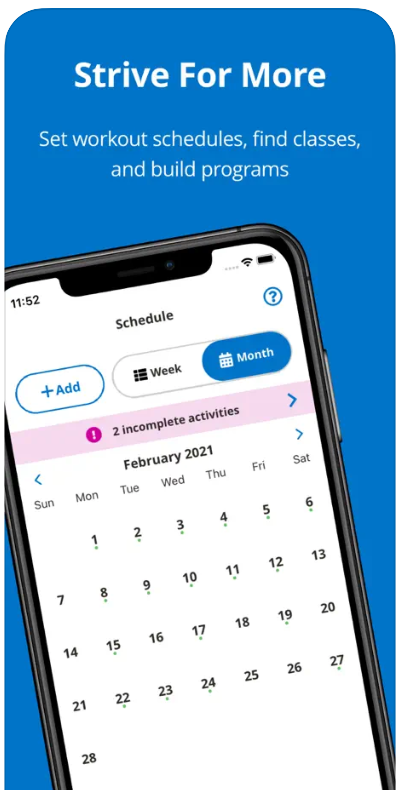
SilverSneaker GO

Map My Walk

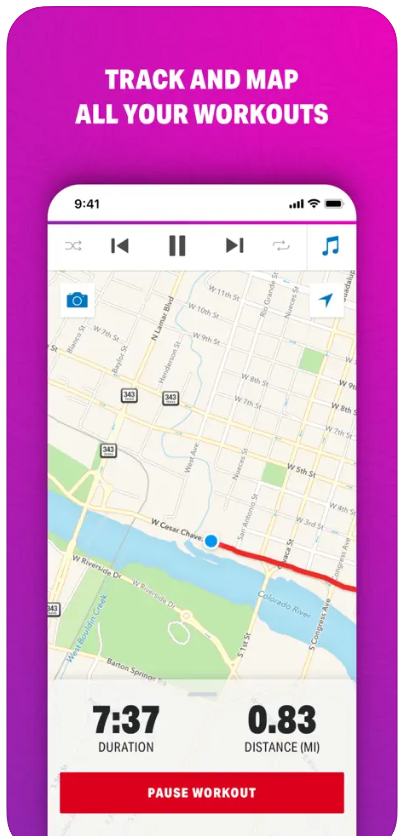
This app is excellent for seniors who enjoy walking as a form of exercise. It allows users to track their walks, set personal goals, and find new routes. Additionally, it offers audio feedback to help improve performance. Beyond walking, it can track various other activities, making it a versatile choice.

Key Features

  • Route Tracking: Allows users to track their walking routes with detailed maps and statistics such as distance, duration, and calories burned​.
  • Goal Setting: Users can set personal goals and monitor their progress over time​.
  • Community Features: Connect with friends, share routes, and join challenges to stay motivated and engaged​.
Map My Walk

Daily Yoga

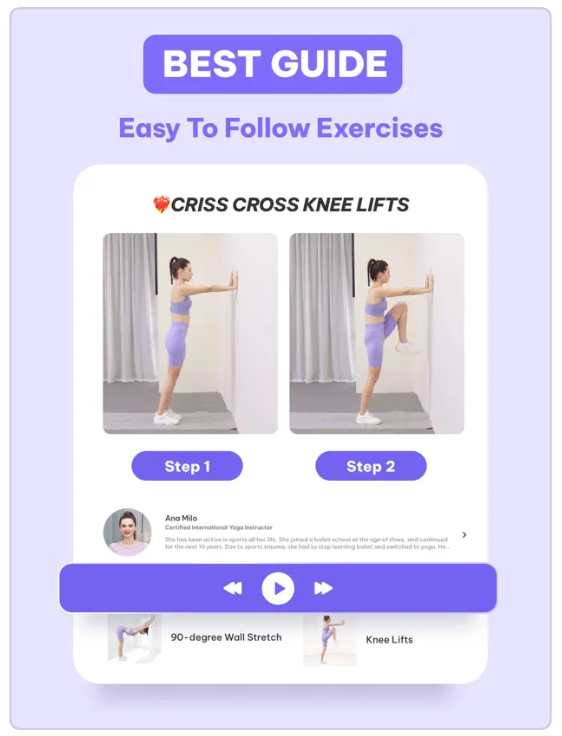
Daily Yoga provides over 100 yoga and meditation classes suitable for all skill levels. This app is great for seniors as it offers gentle exercises that can improve flexibility, balance, and relaxation. It’s designed to ease beginners into yoga and promises noticeable improvements within a couple of weeks​.

Key Features

  • Extensive Class Library: Offers over 100 yoga and meditation classes suitable for all skill levels​.
  • Guided Programs: Provides structured programs that guide users through daily routines, helping them gradually improve their flexibility and balance​​.
  • Health Tracking: Tracks users’ progress and improvements over time, making it easier to see the benefits of regular practice​.

FitOn

FitOn offers a wide range of senior-friendly workouts designed by celebrity trainers. These include cardio, HIIT, strength training, dance, yoga, and pilates classes. The workouts can be done at home with minimal equipment, making it convenient and accessible for seniors who prefer not to go to the gym​.

Key Features

  • Variety of Workouts: Offers a wide range of workout types including cardio, HIIT, strength training, dance, yoga, and pilates, all designed by celebrity trainers​​.
  • Home-Friendly: Most workouts can be done at home with minimal or no equipment, making it accessible for seniors who prefer not to go to the gym​​.
  • Unlimited Access: Provides unlimited access to all workouts, ensuring users have a diverse range of exercises to keep them engaged and motivated​​.
FitOn

Conclusion

Whether you’re looking to start a new fitness routine or enhance your current one, these iPhone fitness apps are perfect for keeping active agers engaged and motivated. With options ranging from yoga to walking, there’s something for everyone. Embrace the convenience and variety these apps offer, and enjoy a healthier, more active lifestyle right at your fingertips.
Add A Person To iPhone Message Thread

Add A Person To iPhone Message Threa

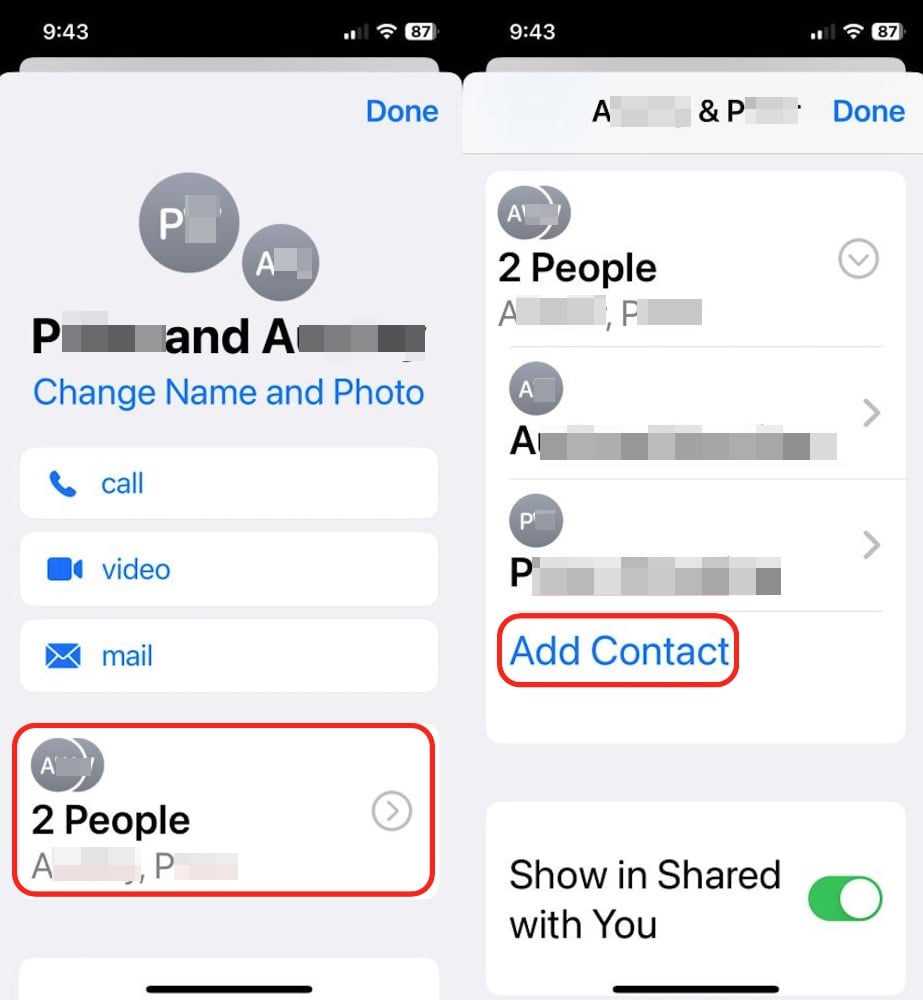
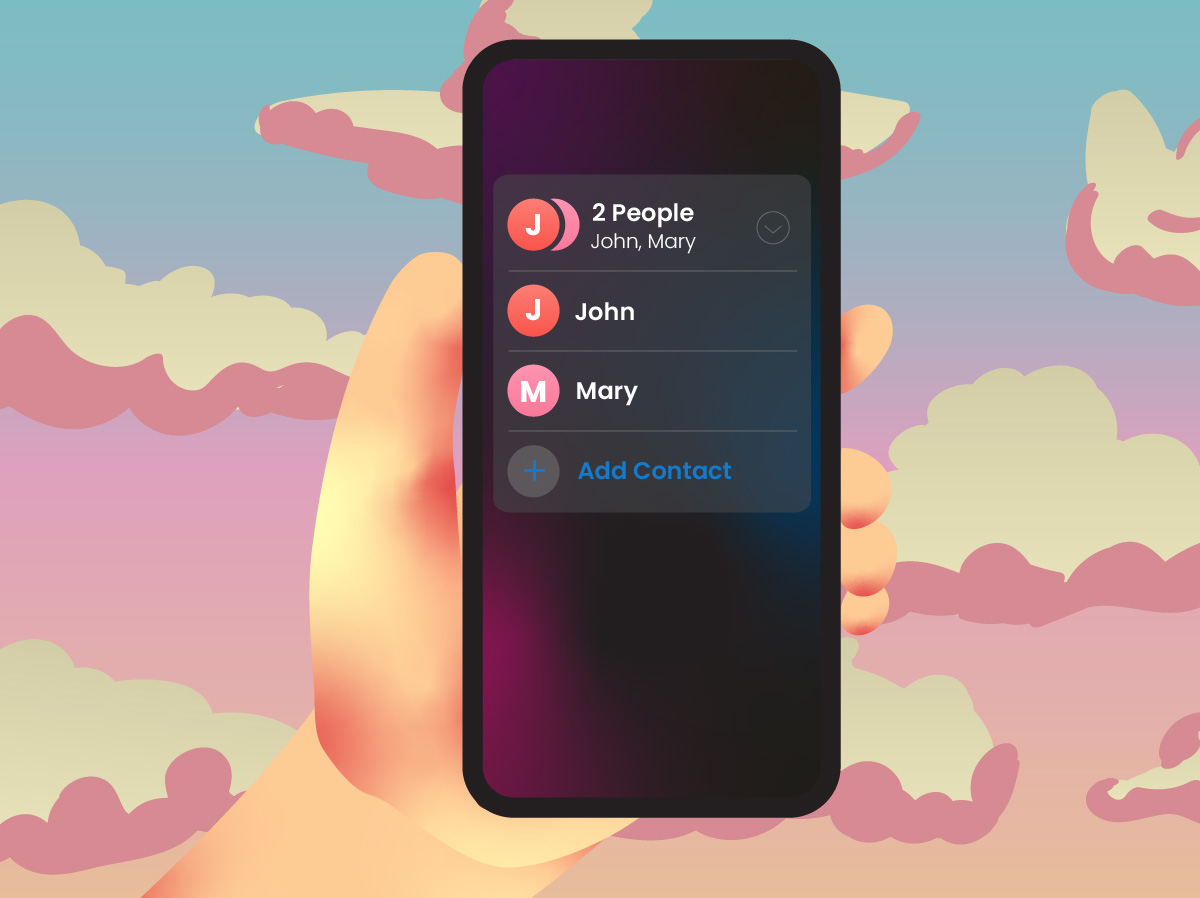
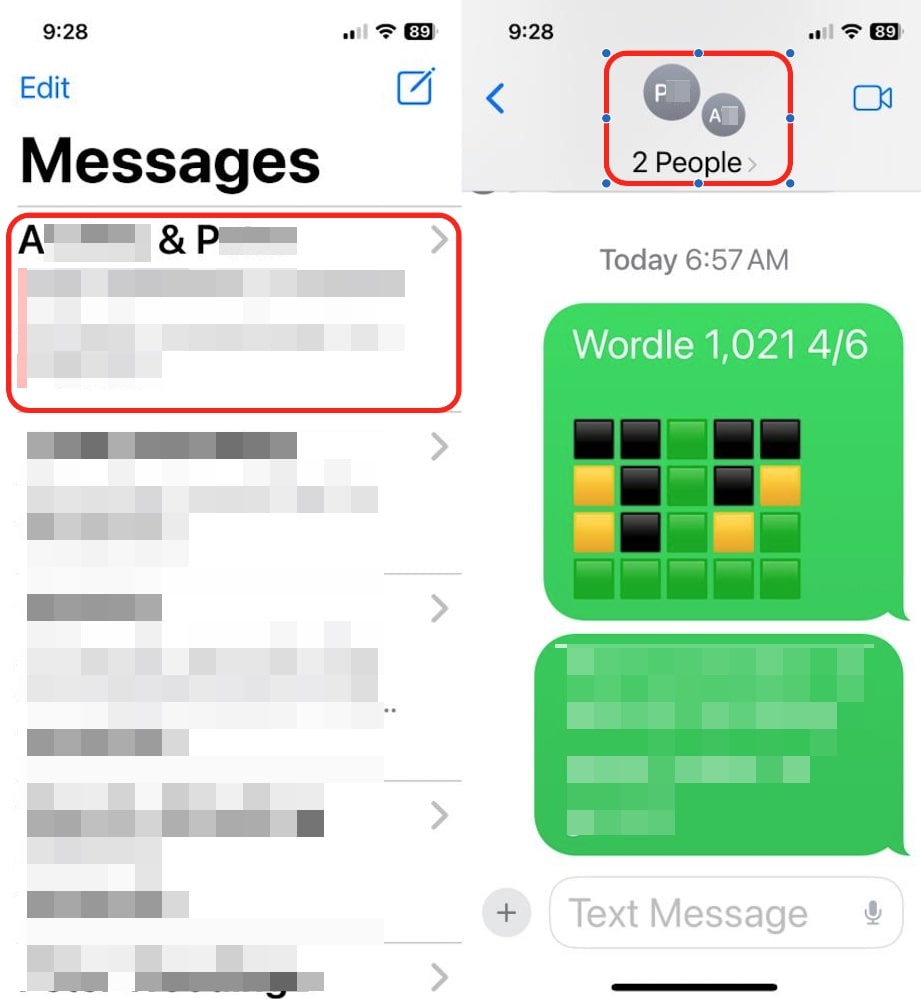
Open the Messages app on your iPhone and choose the group chat where you want to add someone. Tap the group name at the top. Tap the button near the bottom that shows the people in the message thread. Tap “Add Contact”. Add the new person. Boom 💥

Table of Contents

Find The Message

Choose the message you want to add someone to. Tap the group name at the top.

iPhone message thread

Add Another Person

Go down to the section that shows who is already in the conversation (that has the right arrow >). Tap that.

Then tap the “Add Contact” option and add one or more people to the conversation.

iPhone add contact to message

Not A Group Thread

How do you add a person or people to a one-on-one iPhone message conversation?

You don’t.

You start a new thread with all of the people you want to include.

Stay Connected With These Top 7 News Apps

In today’s fast-paced world, staying informed about current events is more important than ever. However, navigating the plethora of news sources available can be daunting, especially for older adults who might not be as tech-savvy. Thankfully, there are several user-friendly news apps designed to provide reliable, up-to-date information in an easy-to-use format. Whether you’re looking for breaking news, in-depth analysis, or tailored content relevant to seniors, these top news apps will help you stay connected and informed with minimal effort.

Table of Contents

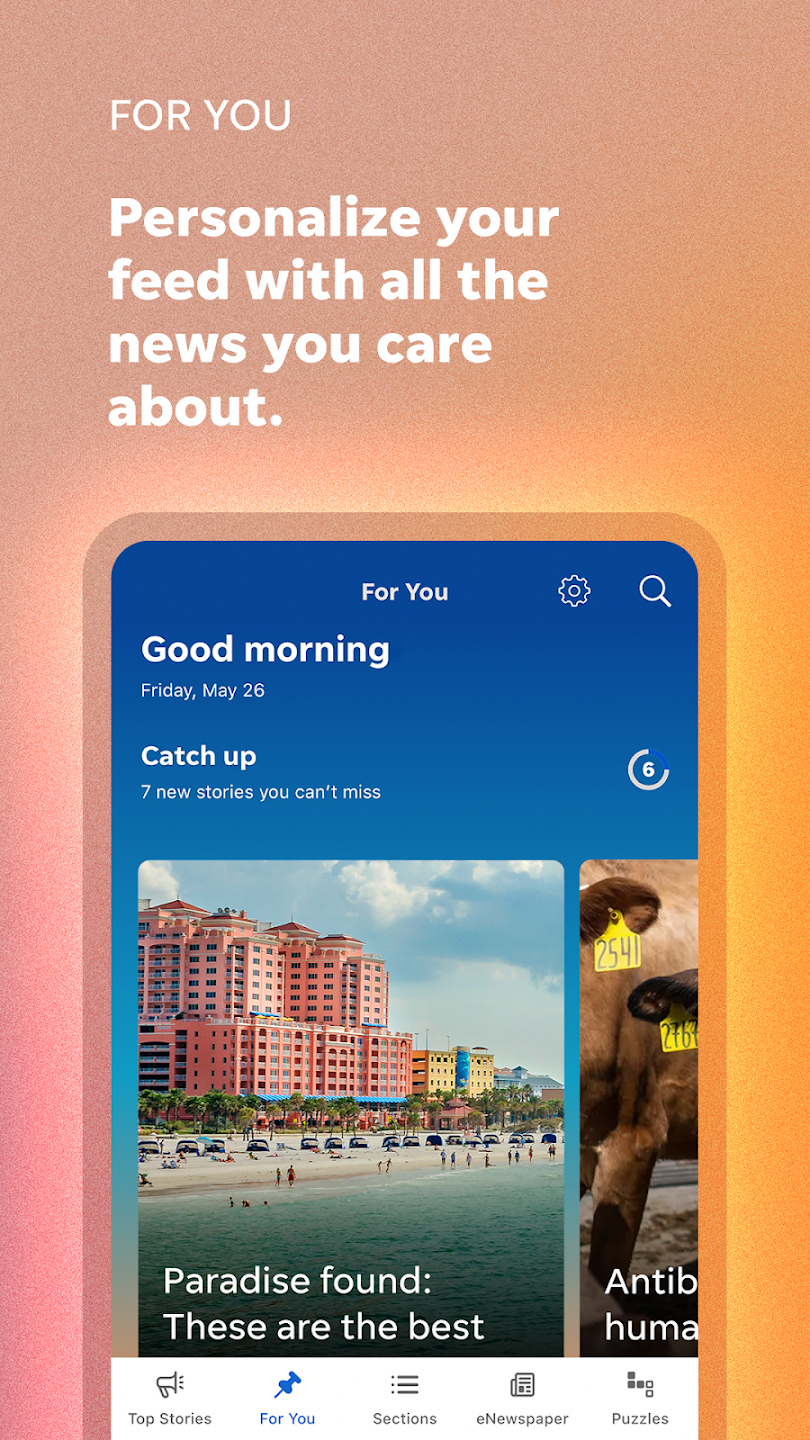
Apple News

Apple News offers a curated selection of news from a variety of trusted sources, ensuring you stay informed with the latest headlines. It provides personalized recommendations based on your reading habits, making it easier to follow topics you care about. The clean, ad-free reading experience and easy navigation make it ideal for all users.

Key Features:

  • Easy-to-navigate interface
  • Customizable news topics
  • Clean, ad-free reading experience
  • Integrates seamlessly with other Apple devices
Apple News

Google News

Google News aggregates news from numerous sources, tailoring the feed to match user preferences. It’s designed to help users quickly catch up on the most important stories of the day. With its simple interface, you can follow specific topics and receive real-time updates on breaking news, ensuring you never miss out on crucial information.

Key Features:

  • Personalized news feed
  • Simple and intuitive interface
  • Ability to follow specific topics and sources
  • Real-time updates on breaking news
Google News

BBC News

BBC News delivers reliable, up-to-date coverage from around the world, renowned for its comprehensive and factual reporting. With a straightforward layout, users can easily navigate through top stories, breaking news, and in-depth analyses. The app also offers high-quality video content, making it a versatile source for all your news needs.

Key Features:

  • Straightforward and easy-to-use interface
  • Breaking news alerts
  • Extensive international coverage
  • High-quality video news content
BBC

The New York Times

The New York Times app provides in-depth reporting and a wide range of news topics, from politics to lifestyle. Renowned for its quality journalism and thorough analysis, it ensures that you are well-informed on critical issues. The app features multimedia content, including videos and podcasts, making it a comprehensive news source.

Key Features:

  • Easy navigation
  • High-quality journalism
  • Dedicated sections for top stories and opinions
  • Multimedia content including videos and podcasts
The New York Times

USA Today

USA Today offers a broad spectrum of news, covering both national and international events. Its user-friendly design ensures that readers can easily find and read the news. The app’s clear layout, large fonts, and images make it accessible and enjoyable for everyone, providing comprehensive coverage in a simple format.

Key Features:

  • Simple and clear layout
  • Large fonts and images for better readability
  • Comprehensive news coverage
  • Customizable news feed
USA Today

CNN

CNN delivers up-to-the-minute news coverage, with a strong focus on breaking news. The app includes video news and live TV coverage, offering a dynamic and engaging way to stay updated. With its user-friendly interface and extensive coverage, CNN ensures you are always in the loop on major events.

Key Features:

  • User-friendly interface
  • Video news and live TV coverage
  • Breaking news alerts
  • Extensive coverage of major events
CNN

NPR News

NPR News provides both audio and written news, catering to a wide range of topics with in-depth and thoughtful reporting. Known for its high-quality journalism, the app allows users to listen to live radio and podcasts, making it perfect for those who prefer consuming news through audio.

Key Features:

  • Simple and intuitive design
  • Focus on audio news for ease of access
  • Comprehensive coverage of diverse topics
  • Ability to listen to live radio and podcasts
NPR News

Conclusion

Choosing the right news app can make a significant difference in how easily and efficiently you stay updated with the world around you. The apps listed here are not only reputable and reliable but also designed with user-friendly features that cater to a wide audience, including older adults. Download one today and stay connected with the latest news, no matter where you are.

Tips To Make Reading Easy Using News Apps

  1. Adjust Text Size: Many news apps allow users to increase the font size for better readability.
  2. Enable Notifications: Set up notifications for breaking news to stay updated without actively searching.
  3. Bookmark Favorites: Save favorite news sources or articles for easy access later.
  4. Voice Assistants: Use Siri or Google Assistant to open and navigate news apps hands-free.

iPhone Shazam It

iPhone Shazam It

You can have the Shazam app on your iPhone identify music playing by simply telling Siri to Shazama it while music is playing.

Table of Contents

Shazam it
Shazam it

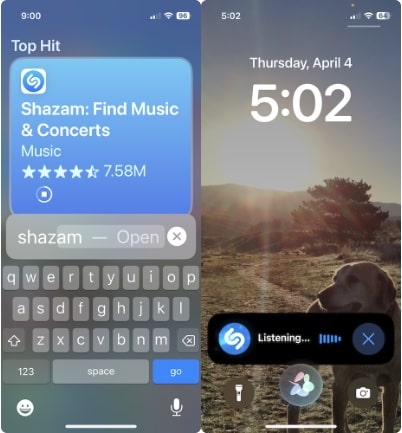
Download Shazam

Go to the App Store on your iPhone and download the Shazam app.

You can use the search capability in the App Store app to find Shazam.

Shazam It

Tell Siri what you want. Hey Siri, Shazam it.

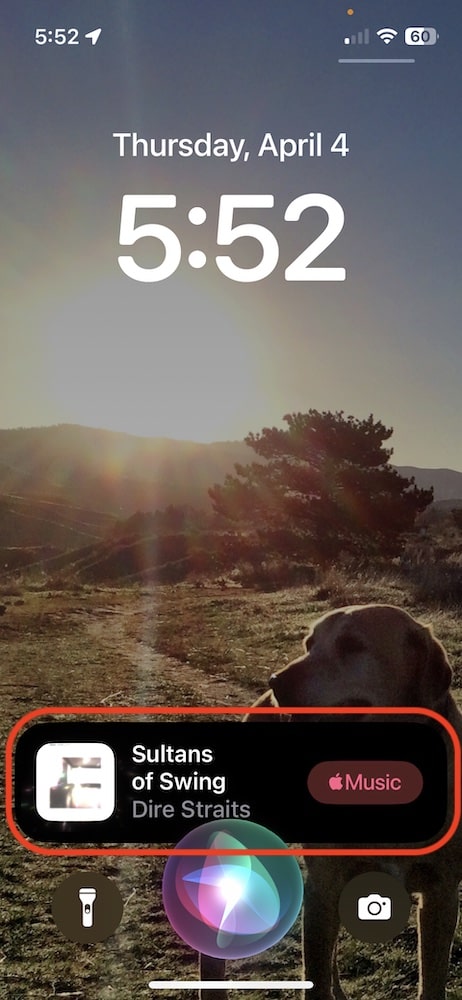
Just make sure that the music you want to identify is near your phone and in a few seconds Shazam will tell you about the song that is currently playing.

Sultans Of Swing
Sultans Of Swing

But wait, there is more…

What if you are not friendly with Siri, what do you do?

Do it the old fashion way.

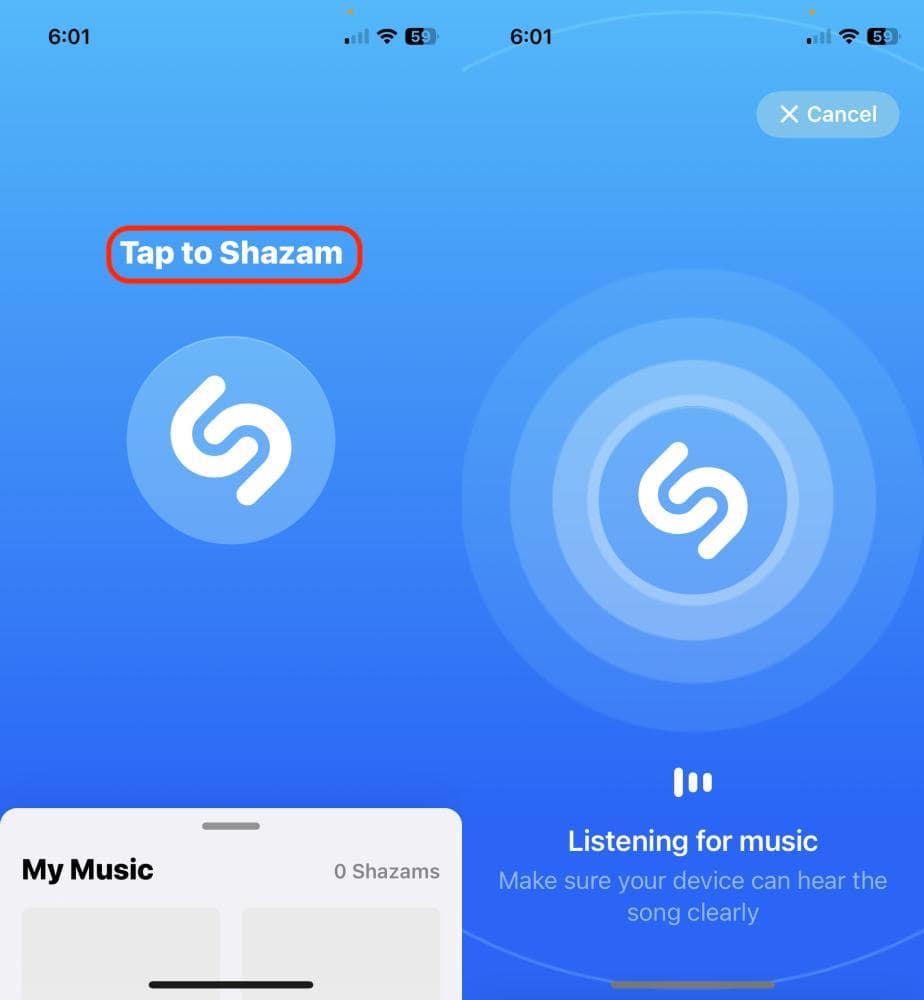
Open the Shazam app on your iPhone.

The first time you open the app you will likely be prompted to allow Shazam to access your microphone. You have to say yes for this to work.

At this point, do what Shazam says Tap to Shazam.

Shazam app
Shazam app

Shazam will go to work and likely let you know what song you are listening to in a matter of a few seconds.

Shazam Success!
Shazam Success!

Top 5 Must-Have Cooking Apps: Elevate Your Culinary Skills Today!

In the digital age of culinary exploration, cooking apps have become indispensable tools for both novice and seasoned chefs alike. With the plethora of options available, selecting the right app can significantly enhance your culinary journey. Let’s delve into the top five must-have cooking apps for 2024, each offering unique features designed to elevate your skills and ignite your passion for cooking.

Table of Contents

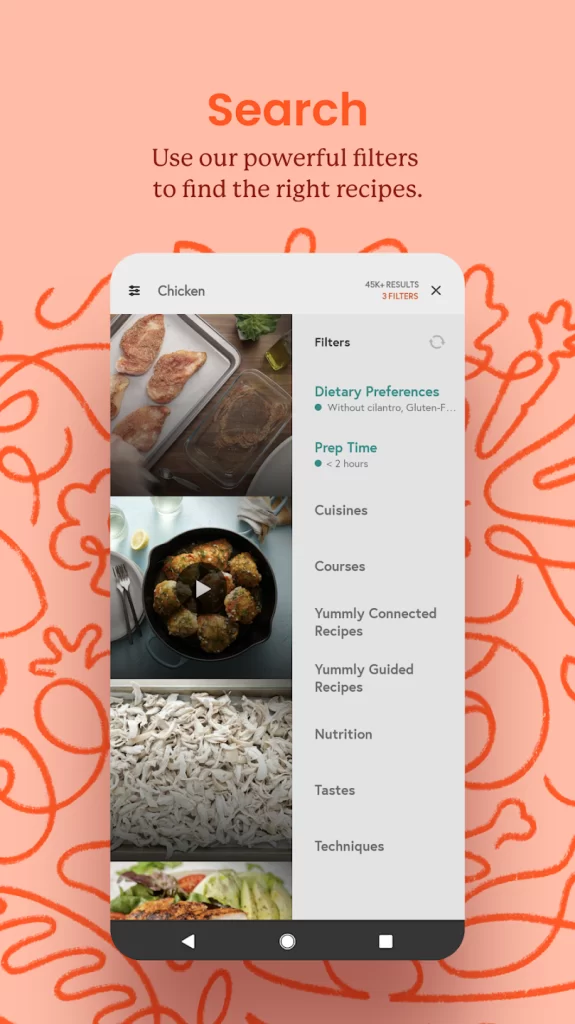
Yummly

Why It’s Great: Yummly transforms your cooking experience with personalized recipe recommendations tailored to your tastes and dietary preferences. It makes meal planning effortless and helps you discover new recipes with ease.

Features:

  • Personalized recipe recommendations based on preferences
  • Meal planner and shopping list
  • Voice control for hands-free cooking​

BigOven

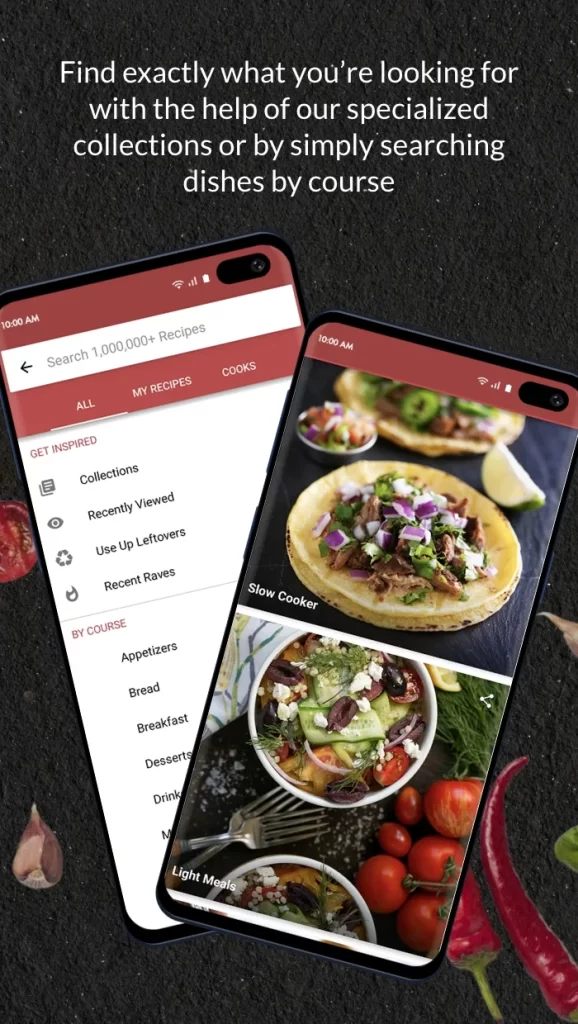
Why It’s Great: BigOven brings the cooking community together, making meal planning and recipe sharing interactive and fun. Its Use Up Leftovers feature helps you turn leftover ingredients into delicious meals.

Features:

  • Use Up Leftovers feature
  • Meal planning and grocery lists
  • Community interaction for recipe sharing​

Paprika Recipe Manager 3

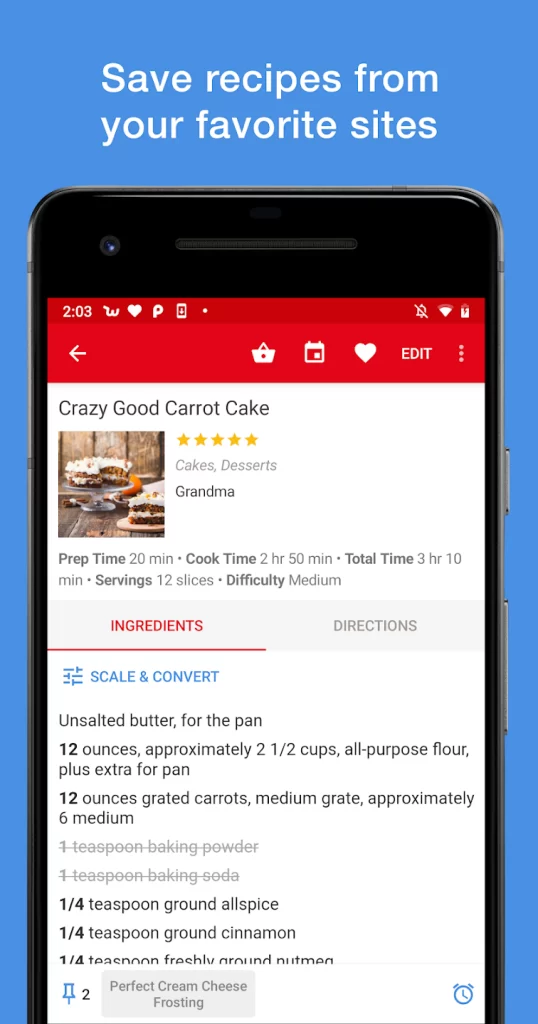
Why It’s Great: Paprika Recipe Manager 3 is a must-have for anyone who loves to cook and stay organized. It allows you to save recipes from any website, create customized grocery lists, and plan your meals with ease.

Features:

  • Save and organize recipes from the web
  • Create grocery lists and plan meals
  • Cross-device syncing​

Kitchen Stories

Why It’s Great: Kitchen Stories inspires creativity in the kitchen with stunning HD instructional videos and step-by-step recipes. It offers a vast library of recipes and a global community for sharing culinary creations.

Features:

  • HD instructional videos
  • Step-by-step recipes
  • Global community for recipe sharing

Forks Over Knives

Why It’s Great: Forks Over Knives promotes a healthy, plant-based lifestyle with its extensive collection of vegetarian and vegan recipes. It provides detailed meal planning tools and step-by-step instructions for nutritious meals.

Features:

  • Plant-based recipes
  • Meal planning tools
  • Step-by-step instructions​

Conclusion

Embrace the future of cooking with these five indispensable apps, designed to streamline your culinary adventures and inspire creativity in the kitchen. Whether you’re a novice seeking guidance or a seasoned chef looking for new inspiration, these apps cater to all tastes, preferences, and dietary needs. Transform your cooking experience today and embark on a flavorful journey filled with endless possibilities.

iPhone Battery Charge Indicator

iPhone Battery Charge Indicator

Display the iPhone’s percentage of battery charge left. From the settings of your phone you can toggle on / off the percentage of battery charge left.

Table of Contents

Battery Charge Amount

iPhone Battery Charge

In the upper right hand corner of the iPhone screen is a battery charge indicator.

You can have it display an icon of a battery with a visual indication of how much charge is left. Or you can have it display the percentage of how much charge is left.

Battery Charge Percentage

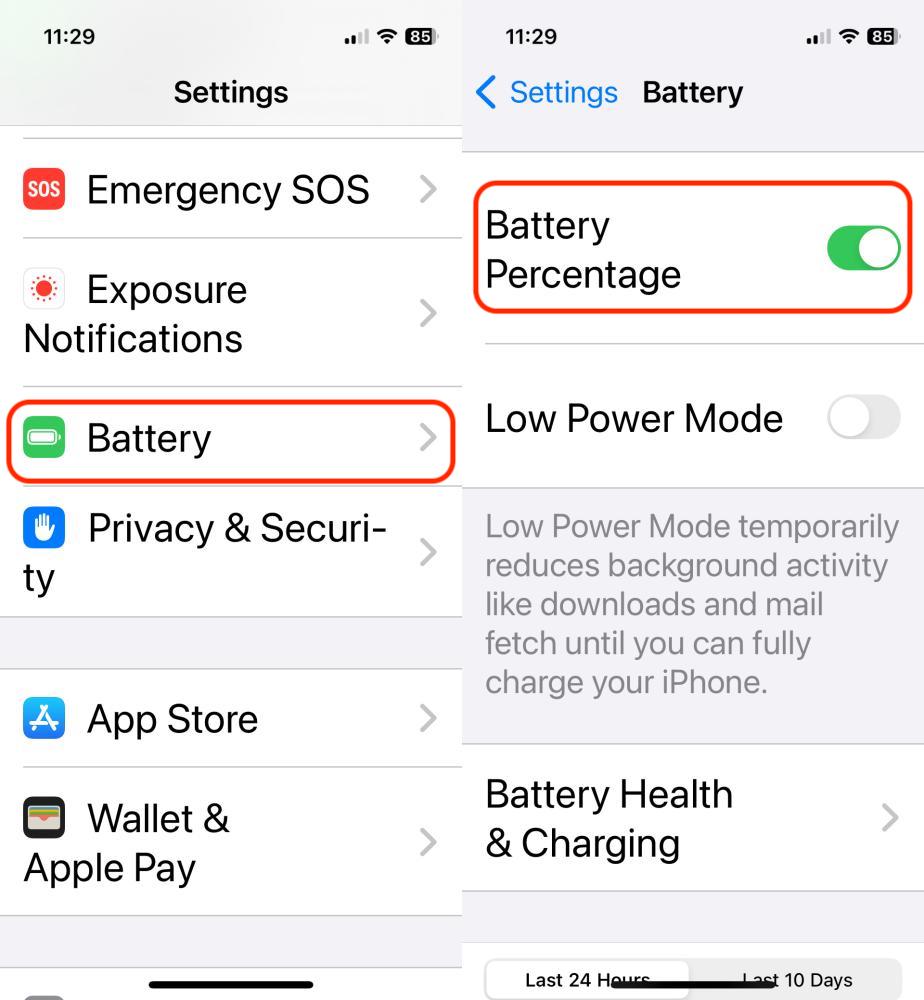
To display the battery charge percentage, go to the settings on your iPhone, then to Battery, then toggle the Battery Percentage on (green) to display the percentage.

iPhone Battery Charge Percentage

Large Battery Charge Percentage

You can have a larger view of the battery charge percentage by placing your finger on the battery indicator in the upper right hand corner.

iphone battery charge percentage large view
Large view of the iPhone battery charge %

Stay Connected! How to Make A FaceTime Call on iPhone

How to Use FaceTime on Your iPhone to Stay Connected with Grandchildren

Let’s get started by first enabling FaceTime on your iPhone.

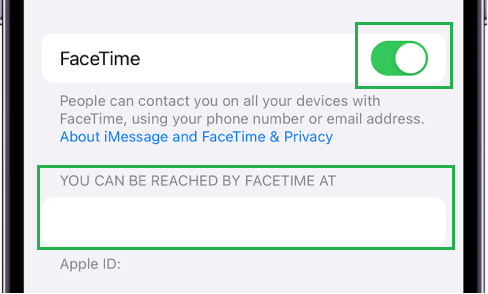
FaceTime Setting
Enable FaceTime
  • First, Go to Settings > FaceTime, then turn on FaceTime.
  • If you want to be able to take Live Photos during FaceTime calls, turn on FaceTime Live Photos.
  • Enter your phone number, Apple ID, or email address to use with FaceTime, then set your caller ID.

On models with Dual SIM, to change the phone number you use for FaceTime, go to Settings > Messages > iMessage & FaceTime Line, then choose a line.

Note: You can use only one of your phone numbers at a time for iMessage and FaceTime. Your other number can’t send or receive messages using iMessage, or make or receive FaceTime calls.

Table of Contents

How To Make A FaceTime Call

Making a Call
Making a FaceTime Call

Now that we’re done setting up FaceTime, it’s time to make a call.

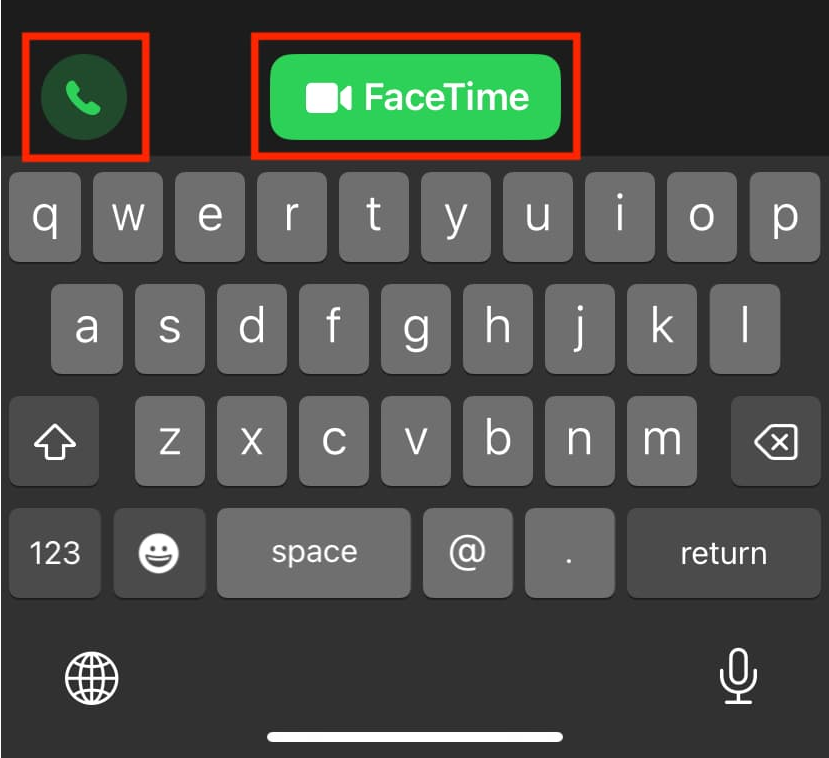
In FaceTime, click or tap the Add Button at the top right. This will prompt an entry field where you can type the number you want to call. After that simply tap the video to make a video call and tap the audio to make an audio call.

Video or Audio call
Choose between an Audio or Video Call

If the person you want to call is from your contact, you can also tap the Add Contact button to open your Contacts and select the recipient from there.


Record A Video Message Instead

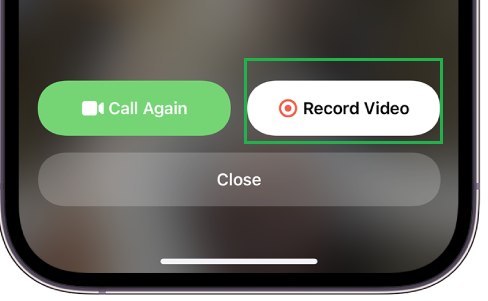
In case the person you’re trying to reach does not answer, you can always record a video message to send.

Record a Video Message
Record Video Message
  • To record a video message simply:
    Tap the Record Video button, wait for the countdown (5 to 1), then record your message.
  • When done with your video message, tap the Up Arrow button to send. You can also tap the Retake button to record a new message instead.
  • Upon sending the message, the recipient will be notified.

Note: You can only receive video messages from saved contacts, people you’ve called or from people suggested by Siri.

Leaving A Message

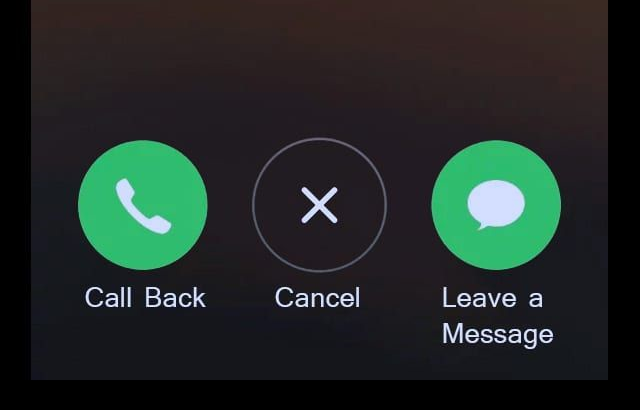
There’s a chance that the person you’re trying to call is unable to answer, you can always to one of the following:

  • Tap Leave a Message
  • Tap Cancel to cancel the call.
  • Tap Call Back to try calling back.
leave a message
Leave a Message

FaceTime Calling From Message Conversation

Let’s say you’re messaging someone and have the urge to suddenly call and have a chat. In the Messages conversation, tap the profile picture or the name of the person then tap FaceTime

Note: You can also choose between a FaceTime Video or FaceTime Audio for the call.


Group FaceTime Call

Now, say that you want to have a chat with multiple recipients, you can:

  • Tap the “+” button in FaceTime at the top right corner.
  • Type the names or numbers of the people you want to add or have the option to add people from your Contacts.
  • Tap the Video button to make a video call or the Audio button for an audio call.

Note: Each participant appears in a tile on the screen. When a participant speaks, or you tap the tile, that tile moves to the front and becomes more prominent. Tiles that can’t fit on the screen appear in a row at the bottom. To find a participant you don’t see, swipe through the row. (The participant’s initials may appear in the tile if an image isn’t available.)

Add another person to a call

During a group call, anyone from all the participants are able to add another person at any time during the FaceTime call. To do this:

  • Tap the screen to open the controls then swipe up to see the Add person button then tap.
  • Type the name, Apple ID or number of the person you wish to add to the group call.
  • Then tap the Add Person to FaceTime.

Join a Group FaceTime call

Join Call
Click Accept to Join Call

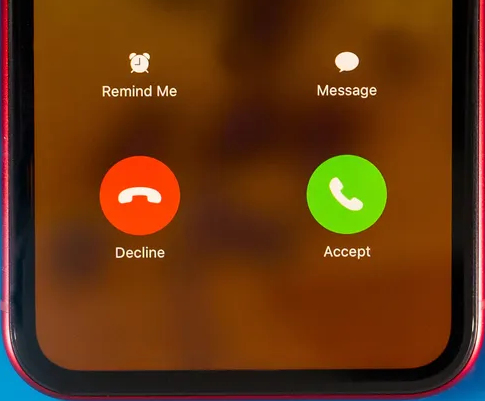
If someone is inviting you to join a Group FaceTime call, you will see the incoming call display. Simply tap the Join or Accept to join the Call. Should you wish to decline, you will receive a notification that you can tap to join at any time while the Group Facetime call is active.

7 Tips for Eye Health and Reducing Screen Fatigue During FaceTime Calls

Staying connected with your grandchildren through FaceTime is a wonderful way to share moments and strengthen bonds. However, spending extended time on screens can sometimes cause eye strain and fatigue, especially for elders. To help you enjoy your FaceTime calls comfortably and keep your eyes healthy, we’ve compiled these seven simple tips. Implementing these can make your screen time more pleasant and ensure you stay connected with your loved ones without discomfort.

Table of Contents

1. Follow the 20-20-20 Rule

  • What It Is: Every 20 minutes, take a 20-second break to look at something 20 feet away.
  • Why It Helps: This simple practice helps relax the eye muscles, reducing the risk of digital eye strain. By frequently shifting focus, you prevent your eyes from becoming overly tired, which can lead to discomfort, headaches, and blurred vision. This break also encourages you to stand up and move around, promoting overall physical health.

2. Ensure Proper Lighting

  • Tip: Use soft, indirect lighting in the room where you FaceTime.
  • Why It Helps: Proper lighting reduces glare and harsh reflections on your screen, which can cause your eyes to strain as they adjust. Consistent, soft lighting helps maintain a stable visual environment, reducing the effort your eyes need to put in to see clearly. Additionally, well-lit environments prevent your pupils from dilating excessively, reducing eye fatigue and maintaining a more comfortable viewing experience.

3. Adjust Screen Position

  • Tip: Keep your device at eye level and about 20-30 inches away from your face.
  • Why It Helps: Proper screen positioning ensures that you maintain a natural posture, reducing the need to tilt your head or strain your neck. This alignment helps prevent musculoskeletal discomfort and reduces the strain on your eyes caused by looking up or down for extended periods. Maintaining an appropriate distance from the screen also helps in reducing the intensity of light entering your eyes, minimizing fatigue and potential eye damage.
4. Use Blue Light Filters

  • Tip: Enable the blue light filter on your device or use blue light blocking glasses.
  • Why It Helps: Blue light emitted from screens can penetrate deep into the eye, leading to digital eye strain and potentially disturbing sleep patterns by suppressing melatonin production. Blue light filters and blocking glasses reduce the amount of blue light exposure, making screen time more comfortable for your eyes. This helps in reducing eye fatigue, improving visual comfort, and protecting long-term eye health.
  • Tip: Make a conscious effort to blink frequently during calls.
  • Why It Helps: Blinking naturally lubricates your eyes by spreading tears over the surface, which helps keep them moist and comfortable. Prolonged screen use can reduce blink rates, leading to dry, irritated eyes. By reminding yourself to blink more often, you maintain eye moisture, reduce the risk of dry eye syndrome, and enhance overall eye comfort during extended FaceTime sessions.

6. Take Regular Breaks

take a break
  • Tip: Schedule short breaks during long FaceTime sessions.
  • Why It Helps: Regular breaks give your eyes a chance to rest and recover from continuous screen exposure. These breaks reduce the cumulative strain on your eye muscles and help prevent symptoms of digital eye strain such as headaches, blurred vision, and neck or shoulder pain. Stepping away from the screen also promotes physical activity, which is beneficial for your overall health and well-being.

7. Adjust Screen Brightness

  • Tip: Match your device’s screen brightness to the surrounding lighting conditions.
  • Why It Helps: Properly adjusting your screen brightness helps your eyes avoid working too hard to adapt to different light levels. If the screen is too bright or too dim compared to the surrounding light, your eyes have to constantly adjust, which can lead to fatigue and discomfort. By aligning screen brightness with ambient lighting, you create a more comfortable viewing experience, reducing strain and enhancing visual clarity.

Conclusion

Following these simple tips can help you maintain eye health and reduce screen fatigue during FaceTime calls, ensuring a more comfortable and enjoyable experience.

How To Change Font Size On iPhone

How To Change Font Size On iPhone

In the iPhone Settings, go to the Display & Brightness settings and adjust the Text Size and Display Zoom. Here is how to do this…

Table of Contents

Font Size On iPhone

Here is the difference between the default settings and settings that will increase the font size on your iPhone.

iPhone font size
iPhone font size

Side by side, these two screenshots of a text message conversation make it clear the difference between the default font size settings and adjusted font size.

  • Default font size allows for more content to show on the screen.
  • Increased font size allows you to more easily read what is on the screen even without glasses.

Increase Font Size On iPhone

There are a couple of things to adjust to increase the font size on the iPhone: Text Size and Display Zoom.

Text Size

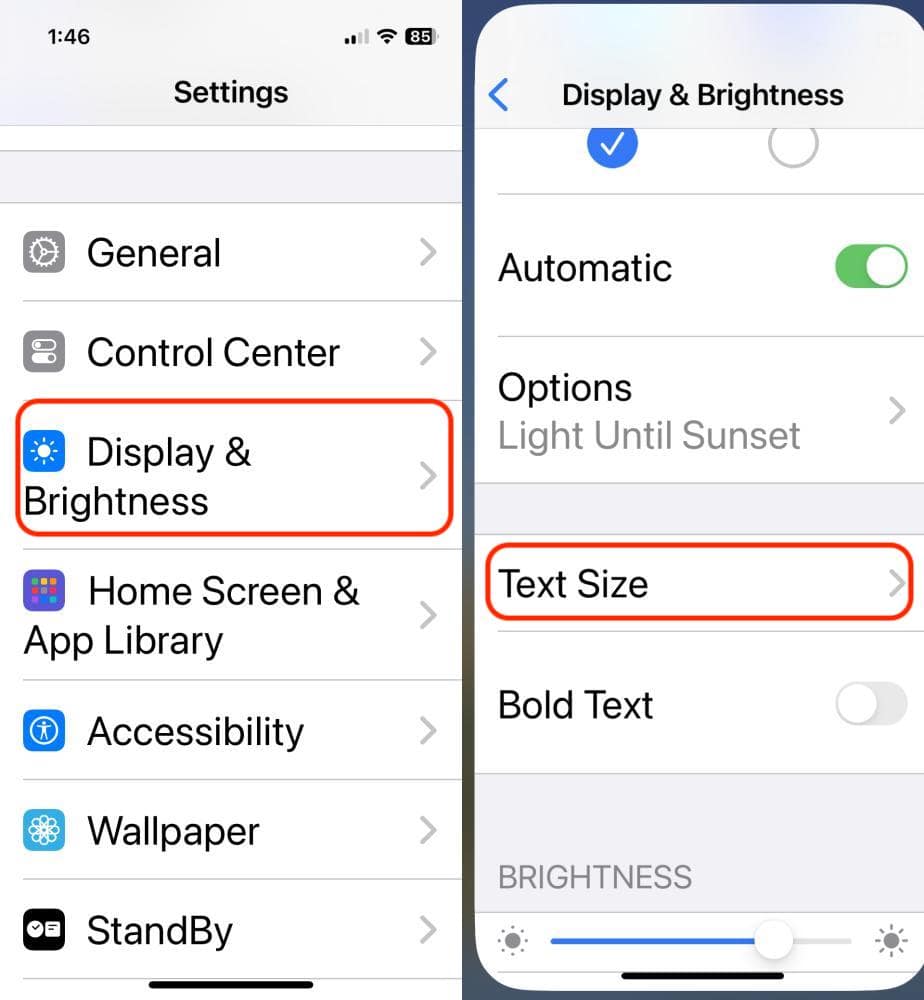
Go to you iPhone settings, scroll down till you find Display & Brightness. Tap Display & Brightness. Scroll down to Text Size and tap that.

iPhone Text Size
iPhone Text Size

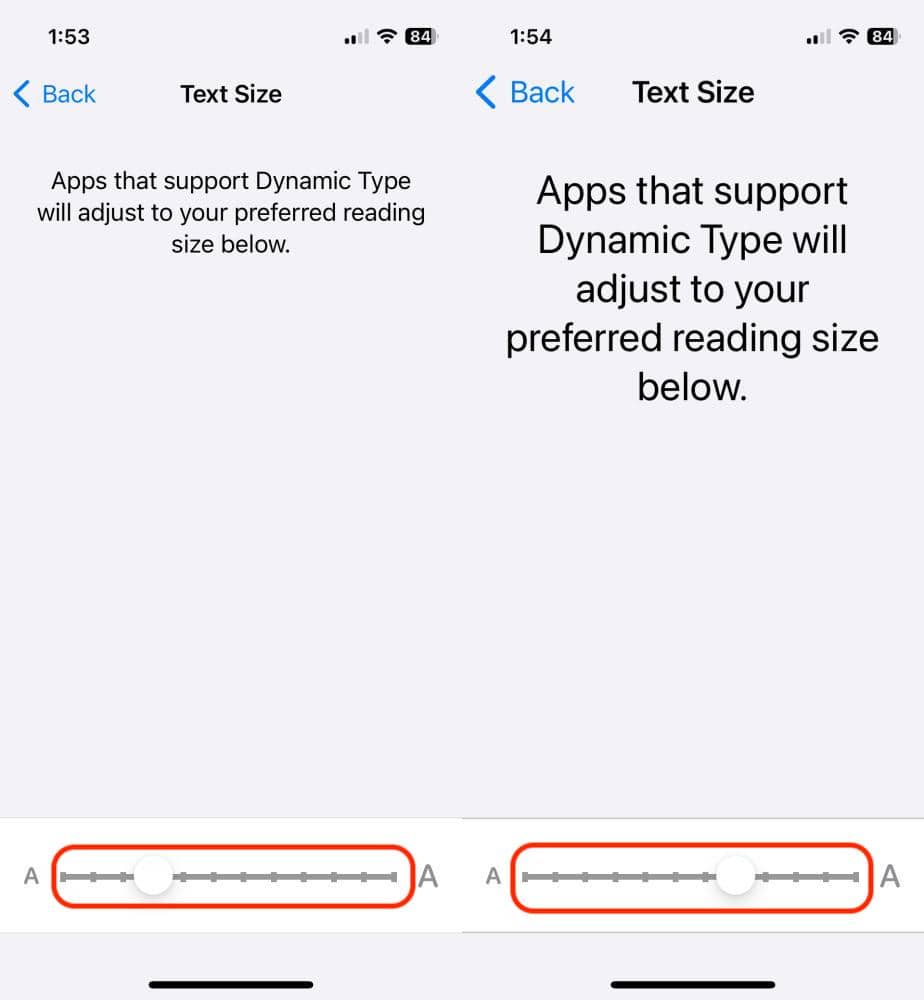
At the bottom of the screen, slide your finger along the bar. There are 11 different choices – smallest on the left, largest on the right. My suggestion is to move the marker on the slider to the 7th position from the left. This will result in a larger font size. Go ahead and slide it all the way to the right and tell me that is not too big 😁.

The image on the left is with the text size at the fourth position (smaller) and the image on the right is the text size at the seventh position (larger).

iPhone text size adjustment

Display Zoom

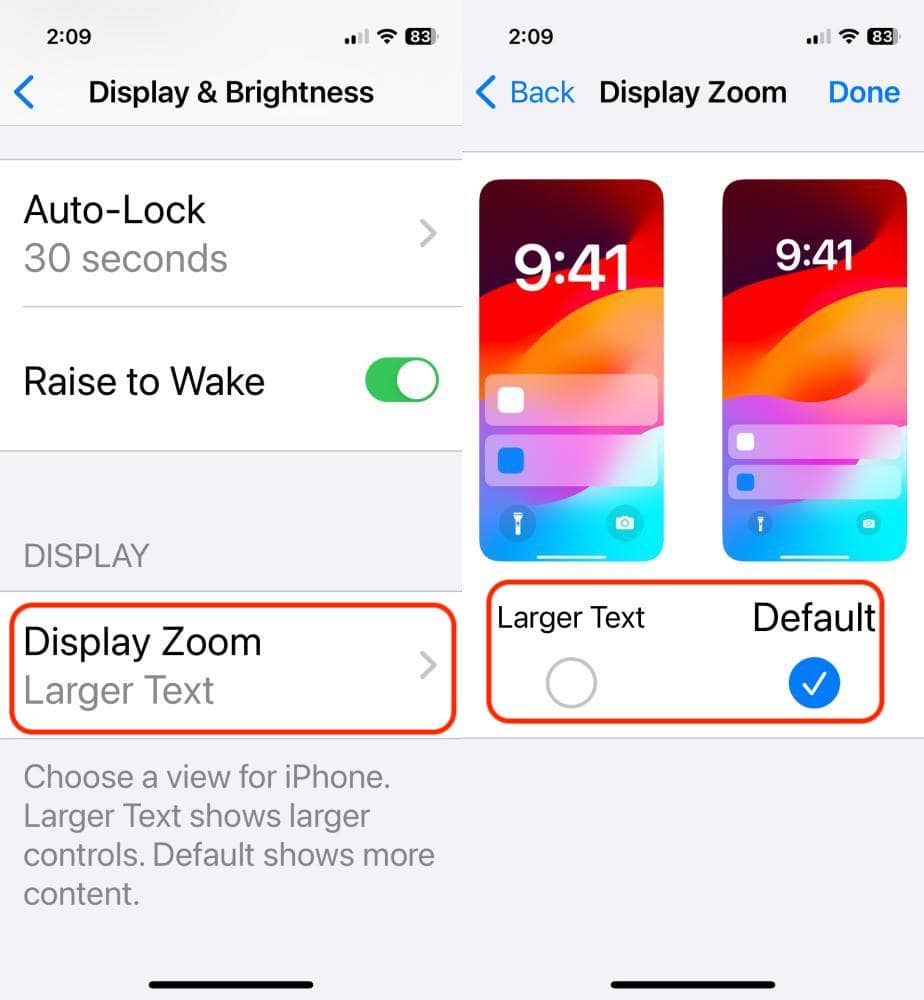
Go back to Settings > Display & Brightness. Scroll down to the bottom and tap the Display Zoom option.

iPhone Display Zoom
iPhone Display Zoom

The image below on the left shows the text message conversation with increased text size and default Display Zoom. The image on the right is with increased text size and larger text Display Zoom.

iPhone Display Zoom Comparison

In my observation, the larger text size combined with the display zoom setting to larger text makes it that much easier to read your iPhoneespecially if you forget your glasses!

Amazing Things You Can Do with Hey Siri on Your iPhone

Siri, the virtual assistant on iPhones, is your personal helper at your beck and call. With just a simple “Hey Siri,” you can unlock a world of possibilities. From making calls and sending texts to setting alarms and even telling jokes, Siri makes your iPhone experience more convenient and fun.

In this guide, we’ll explore eighteen incredible things you can do with Hey Siri, showcasing its versatility and convenience. Let’s dive in and discover how Siri can simplify your life.

Table of Contents

The Basics

  • Call or FaceTime Someone
    Ex.: “Hey Siri, call Sarah,” or “Hey Siri, FaceTime Mom.”
  • Text Someone
    Ex.: “Hey Siri, tell John I am on my way,” or “Hey Siri, tell Emily I am going to the store.”
  • Set a Timer
    Ex.: “Hey Siri, set the timer for 10 minutes.”
  • Solve Math Problems
    Ex.: “Hey Siri, what is 234 divided by 6?” or “Hey Siri, what is the square root of 16?”

Phone and Settings

  • Take a Picture
    Ex.: “Hey Siri, take a picture.”
  • Adjust Music Volume
    Ex.: “Hey Siri, adjust volume to 80 percent,” or “Hey Siri, turn the volume up/down.”
  • Open Apps
    Ex.: “Hey Siri, open Safari,” or “Hey Siri, open Instagram.”

Scheduling and Reminders

  • Designate Contacts as Relationships
    Ex.: “Hey Siri, my sister is Harper Stevenson,” or “Hey Siri, Greg Stevenson is my brother.”
  • Find Out the Date and Day of the Week of Holidays
    Ex.: “Hey Siri, when is Easter?” or “Hey Siri, when is Labor Day?”
  • Set Alarms
    Ex.: “Hey Siri, set an alarm for 1 a.m.,” or “Hey Siri, set an alarm for six hours from now.”
  • Delete/Turn Off All Alarms
    Ex.: “Hey Siri, delete all alarms” or “Hey Siri, turn off all alarms.”
  • Check the Number of Days Between Dates
    Ex.: “Hey Siri, how many days until December 15?” or “Hey Siri, how many days between March 15 and June 3?”
  • Find Out What Time It Is in Another City
    Ex.: “Hey Siri, what time is it in London?”
  • Define Words
    Ex.: “Hey Siri, define ‘serendipity’.”
  • Find a Synonym
    Ex.: “Hey Siri, what is a synonym for ‘happy’?”

Random Tips and Tricks

  • Roll a Die or Flip a Coin
    Ex.: “Hey Siri, roll a die,” or “Hey Siri, flip a coin.”
  • Tell a Joke
    Ex.: “Hey Siri, tell me a joke.”
  • Knock Knock
    Ex.: “Hey Siri, knock knock.”

You can check other daily life commands here!